

Standing at the venue entrance and seeing a scanner flash red is one of the most stressful moments for any ticket holder. Lines move fast, staff are overwhelmed, and your event start time is closing in. In that moment, most people reach for their phone and think about calling support. Before you do that, there are several critical checks that solve most issues instantly.
This guide walks you through the seven most important things to check before you call Ticketmaster for ticket errors. These steps address the most common reasons behind a Ticketmaster ticket error and situations where Ticketmaster tickets not working causes panic. Each section explains what the issue looks like, why it happens, and how to fix it on the spot.
Most Ticketmaster ticket errors are caused by app access, ticket status, or device settings. Completing the seven checks below resolves most issues in minutes without contacting customer service.
Why Ticketmaster Tickets Show Errors at the Venue
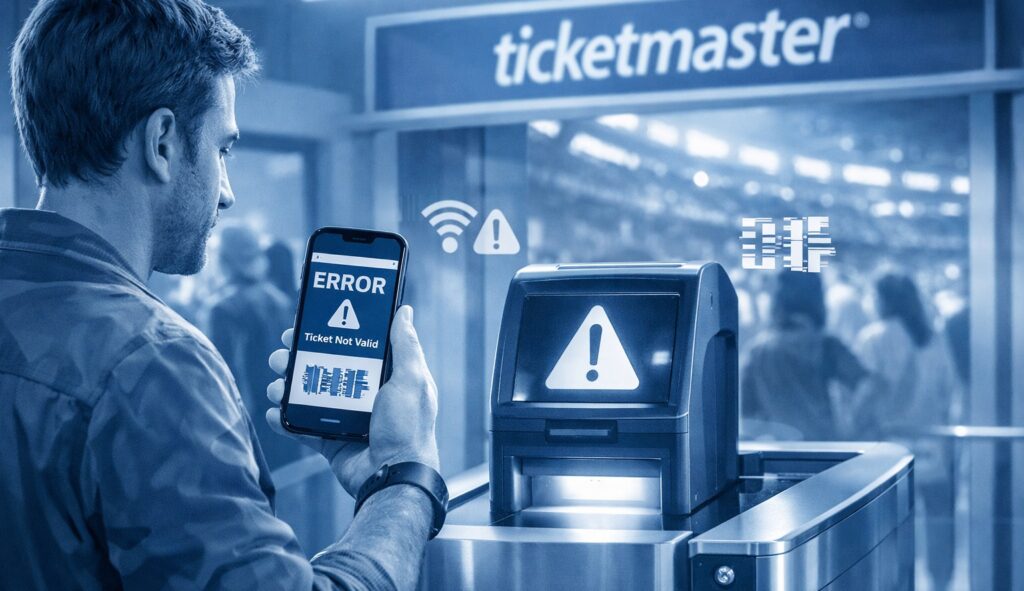
Ticket validation systems work in real time. Every scan checks multiple data points at once, including barcode status, device permissions, ticket ownership, and entry history. A failure in any one of these areas can trigger an error message.
Common causes include outdated apps, screenshots instead of live tickets, connectivity issues, or tickets still marked as transferred. In many cases, the ticket itself is valid, but the system cannot confirm it at that moment.
That is why it is essential to complete a few checks before you call Ticketmaster. These checks align with how venues actually verify tickets at the gate.
1. Confirm You Are Using the Official Ticketmaster App
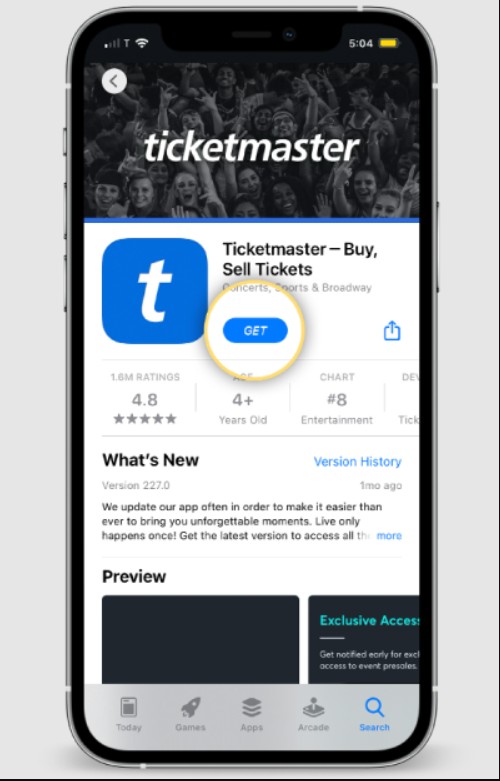
One of the most common reasons behind Ticketmaster tickets not working is access through a browser instead of the official app. Many venues no longer accept browser-based tickets due to fraud prevention policies.
What to check
- The Ticketmaster app is installed from the official app store
- You are logged into the correct account
- Tickets open inside the app and not in a mobile browser
Why this matters
The app generates a secure, rotating barcode or NFC pass that updates in real time. Screenshots and static images fail instantly at the scanner. Venue staff rely on app validation to confirm authenticity.
How to fix it fast
- Download or update the Ticketmaster app
- Log out and log back in
- Open tickets directly from the app home screen
- Avoid using email links at the gate
This single step resolves a huge percentage of ticket scan failures before you call Ticketmaster.
2. Check Ticket Status inside Your Account
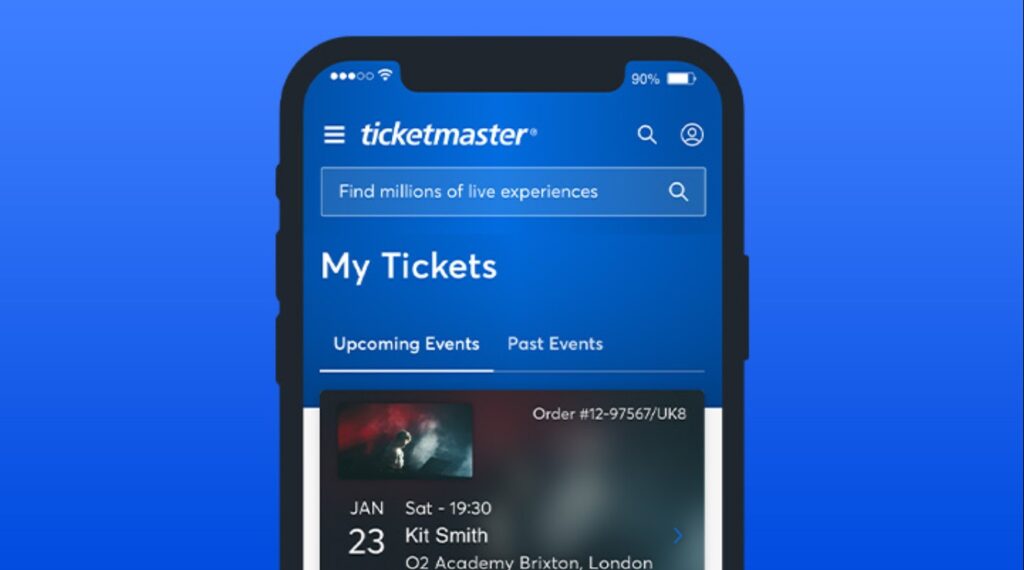
Another frequent Ticketmaster ticket error occurs when the ticket status is not active. Many users overlook this detail while focusing only on the barcode.
What to look for
- Ticket shows as Active or Ready to Scan
- No label saying Pending, Transferred, or Claimed
- No duplicate entries for the same seat
Why this happens
Tickets can remain in a pending state after transfer, resale, or payment verification. Sometimes tickets appear visible but are not yet activated in the system.
What to do
- Pull down to refresh the ticket screen
- Log out and back into your account
- Check the original purchase email for confirmation
- Confirm no transfer is still awaiting acceptance
If the ticket is not marked active, scanners will reject it every time.
3. Verify That the Ticket Has Not Been Transferred Already
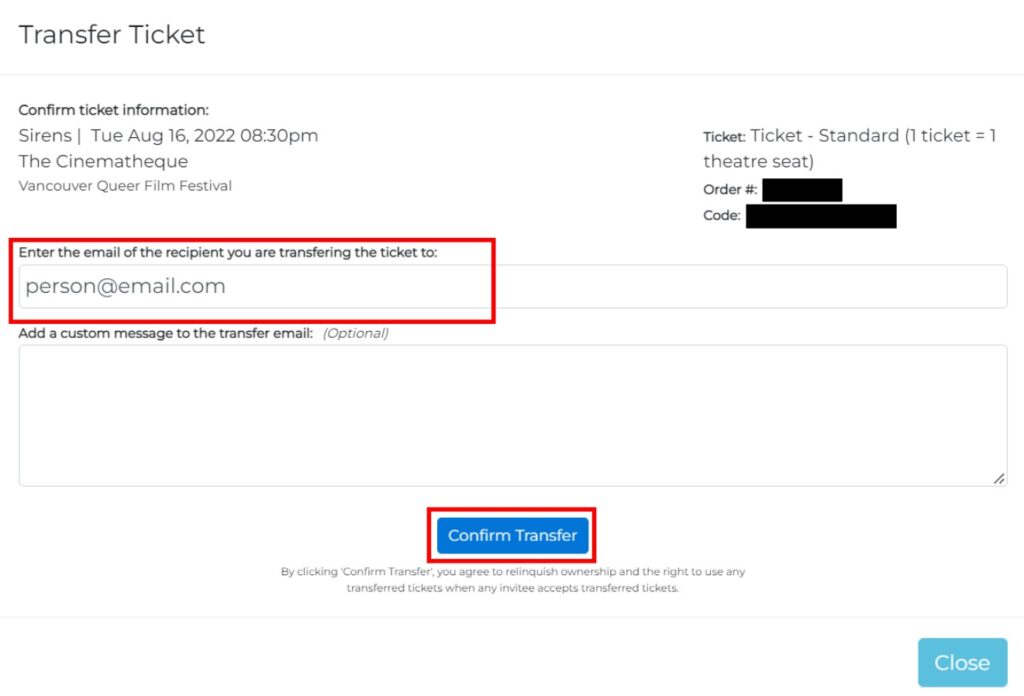
Accidental transfers are more common than people realize. A ticket that has already been transferred out of your account cannot be scanned by you.
Signs this is the issue
- Ticket shows Transfer Pending or Transferred
- Barcode is hidden or unavailable
- Ticket does not open fully
Common scenarios
- You sent the ticket to a friend earlier
- You transferred and then canceled the transfer
- You purchased resale tickets that were not fully claimed
How to fix it
- Check transfer history inside the app
- Ask the recipient to accept or return the ticket
- Refresh the app after transfer completion
- Confirm the ticket now appears under My Events
Before you call Ticketmaster, always confirm the ticket still belongs to your account.
4. Disable Screenshots and Open the Live Ticket
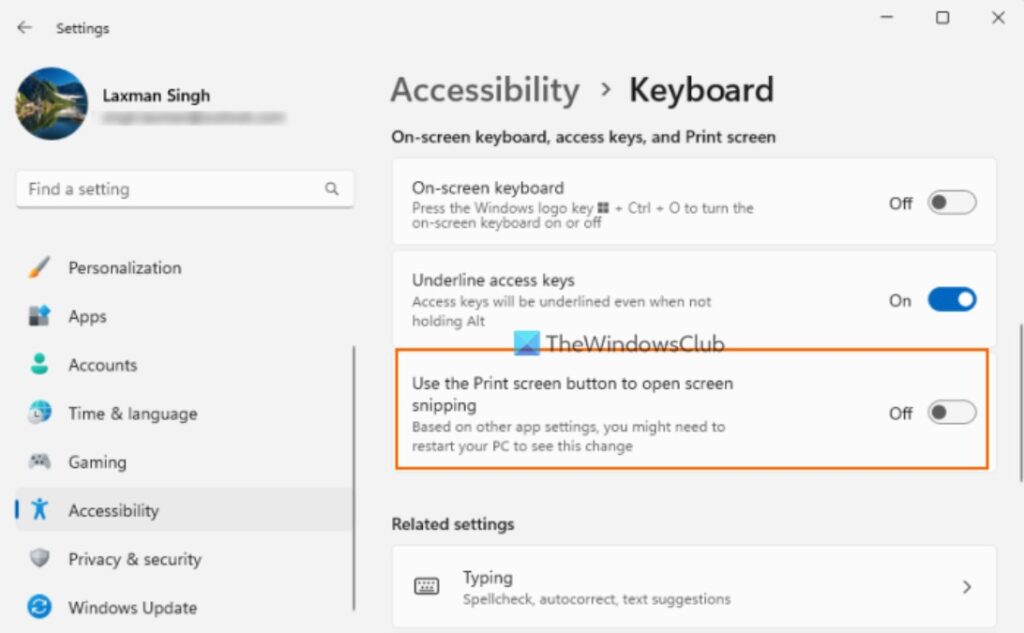
Venue scanners can instantly detect screenshots. Even high quality images fail validation because they lack real time security data.
What scanners expect
- Live barcode animation
- Dynamic refresh movement
- Secure display inside the app
What causes rejection
- Screenshot saved in gallery
- Printed copy of a mobile only ticket
- Shared image from another phone
Fix on the spot
- Close all screenshots
- Open the app and load the ticket live
- Increase screen brightness
- Hold the phone steady under the scanner
This step is critical before you call Ticketmaster, as support will always ask this first.
5. Check Device Settings and Connectivity
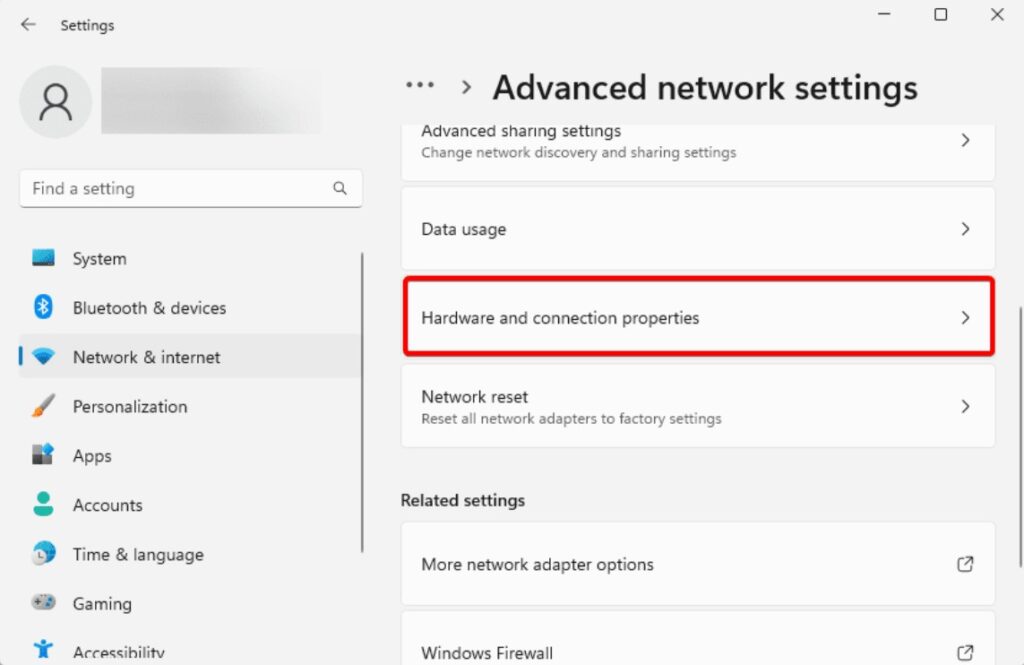
Even valid tickets fail when the device cannot communicate properly with the scanner system.
Important settings to confirm
- Internet connection is stable
- Airplane mode is turned off
- Battery saver mode is disabled
- Screen brightness is set high
Why this matters
Ticket validation relies on moment to moment synchronization. Poor connectivity or restricted device settings interrupt barcode verification.
Quick fixes
- Switch between Wi Fi and mobile data
- Restart the phone
- Close background apps
- Reload the ticket page
Many Ticketmaster ticket error reports trace back to simple device limitations rather than ticket problems.
6. Confirm Entry Time and Venue Rules
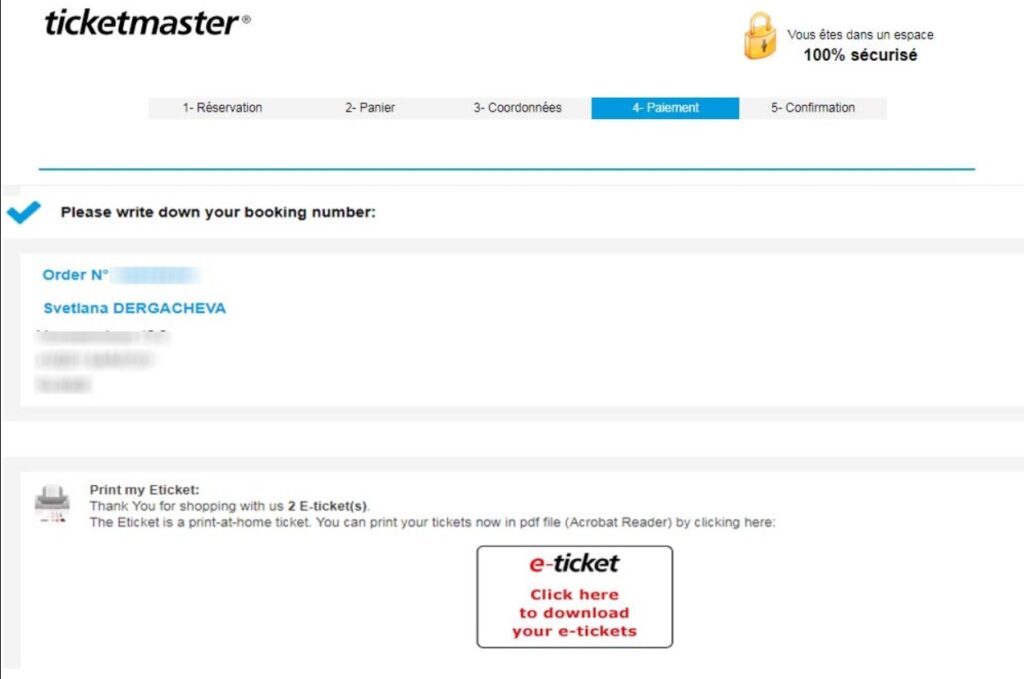
Some venues enforce strict entry windows. Arriving outside the allowed time can trigger an invalid scan message.
What to review
- Entry time listed on the ticket
- Venue specific scanning rules
- Early access or delayed entry notes
Common misunderstandings
- Attempting entry too early
- Trying to re enter after exiting
- Using tickets assigned to a different gate
How to resolve it
- Ask staff to verify entry window
- Use the correct entrance
- Confirm re entry policies with venue staff
Calling support will not override venue enforced rules, so this check is essential.
7. Look for Duplicate Scans or Entry History
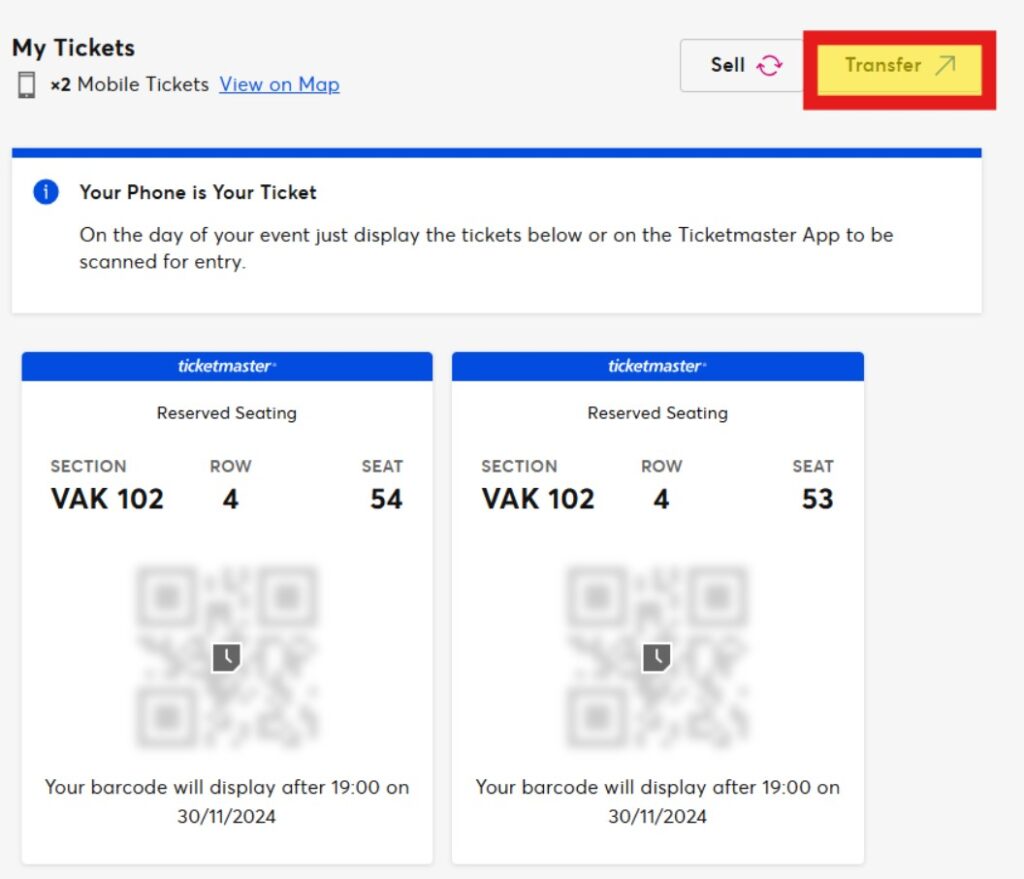
Tickets are designed for single entry unless otherwise stated. A previous scan can permanently lock the ticket.
Situations where this happens
- Someone else scanned the ticket earlier
- Accidental scan during troubleshooting
- Duplicate barcode from shared access
How to identify it
- Error message mentions already scanned
- Venue staff sees prior entry in system
- Ticket history shows used status
What to do next
- Ask venue staff to review scan logs
- Confirm entry count
- Check if companion tickets were mixed up
In these cases, venue supervisors usually have more authority than phone support.
When Calling Ticketmaster Actually Makes Sense
After completing all seven checks, calling support may be necessary in limited cases.
Situations that require support
- Tickets missing from account with purchase confirmation
- System wide outage acknowledged by Ticketmaster
- Payment confirmed but tickets never issued
- Verified resale delivery failure
What to prepare before calling
- Order number
- Event name and date
- Account email
- Screenshot of ticket status screen
Providing this information upfront reduces resolution time significantly.
Quick Action Checklist before You Call Ticketmaster
Use this checklist to resolve most issues in minutes:
- Open tickets in the official app
- Confirm ticket status is active
- Verify no transfer is pending
- Use live tickets only
- Check device settings and connectivity
- Confirm venue entry rules
- Ask staff to review scan history
If all items are confirmed and the issue persists, contacting support is appropriate.
The Bottom Line
Ticket issues feel urgent because they happen at the worst possible time. In reality, most errors are caused by small technical or account related details that are easy to fix once you know where to look.
Following these seven steps before you call Ticketmaster gives you the best chance of resolving the problem immediately. It also puts you in a stronger position if support assistance becomes necessary.
Most importantly, staying calm and methodical helps venue staff help you faster. Ticket validation systems are strict, but they are predictable. Understanding how they work is the fastest way inside.
Frequently Asked Questions
1. What does a Ticketmaster ticket error mean at the venue?
A Ticketmaster ticket error usually means the venue scanner cannot verify the ticket at that moment. This does not automatically indicate a fake or canceled ticket. In most cases, the issue is related to app usage, ticket status, device connectivity, or entry rules enforced by the venue.
Scanners validate tickets in real time. If the app is outdated, the ticket is not fully activated, or the barcode is static, the system blocks entry until the issue is corrected.
2. Why are my Ticketmaster tickets not working even though they show in my account?
Ticketmaster tickets can appear in your account but still fail at the scanner if their status is not active. Tickets marked as pending, transferred, or partially delivered cannot be scanned.
This often happens after resale purchases, incomplete transfers, or recent account changes. Refreshing the app, confirming ticket ownership, and reopening the ticket from the official app usually resolves the issue.
3. Can I use a screenshot of my Ticketmaster ticket to enter the venue?
Screenshots are not accepted for most events. Venue scanners require live tickets that update dynamically inside the Ticketmaster app. Static images lack the security data needed for validation and are rejected immediately.
To avoid a Ticketmaster ticket error, always open the ticket directly in the app and increase screen brightness before scanning.
4. Why does my ticket say transferred or pending when I did not send it?
Tickets can show a transferred or pending status due to accidental taps, previous sharing attempts, or incomplete resale delivery. In some cases, tickets purchased from resale platforms require final acceptance before becoming active.
Check the transfer history inside your account and confirm that the ticket is fully assigned back to you. A ticket that is not fully returned cannot be scanned.
5. Can poor internet or phone settings cause Ticketmaster ticket errors?
Yes. Ticket validation relies on moment to moment synchronization. Weak internet, airplane mode, battery saver settings, or background app restrictions can interrupt barcode verification.
Before scanning, ensure your device has a stable connection, brightness is high, and power saving features are turned off. Restarting the phone often restores proper ticket loading.
6. Why does the scanner say my ticket has already been used?
This message appears when the system detects a prior scan attempt. This can happen if someone else accessed the ticket, the barcode was scanned earlier, or entry was attempted at the wrong gate.
Venue staff can view scan logs to confirm entry history. Support calls cannot override a used scan, so staff verification is the fastest resolution path.
7. Do entry times and venue rules affect ticket scanning?
Yes. Many venues enforce specific entry windows and gate assignments. Attempting to scan too early, too late, or at the wrong entrance can trigger an error message.
Always check entry time details in the ticket description and follow venue signage. Staff at the gate can confirm if timing restrictions apply.
8. What should I do if my tickets disappear from my Ticketmaster account?
If tickets disappear, first confirm you are logged into the correct email account used for purchase. Logging out and back in often restores visibility.
If the tickets still do not appear, search your email for the order confirmation. Missing tickets with confirmed payment may require contacting support, but only after checking app sync and account access.
9. Is calling Ticketmaster the fastest way to fix ticket errors?
In most event day situations, calling support is slower than resolving the issue locally. Venue staff can view scan history, entry logs, and gate permissions instantly.
Calling Ticketmaster is useful when tickets are missing after payment, resale delivery failed, or account access is blocked. Completing basic checks first speeds up resolution.
10. What information should I prepare before contacting Ticketmaster support?
Having the right details ready reduces delays. Prepare your order number, event name, event date, account email, and screenshots showing ticket status inside the app.
Providing this information immediately helps support agents identify the issue faster and avoid repeated troubleshooting steps.