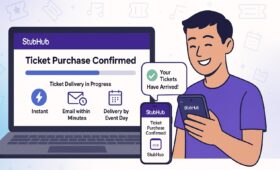

You may have come across a frustrating situation on Stubhub when trying to accept your tickets. During the claiming process, an error message might pop up saying oops something went wrong or simply something went wrong Stubhub. This usually happens when you are eager to secure your event tickets but end up dealing with unexpected technical glitches in the transfer process. The experience can feel stressful and confusing, especially when your event date is getting closer and you still do not have clear access to your tickets.
How Stubhub Ticket Transfers Work: A Quick Overview
Stubhub primarily uses external partners to deliver tickets: Ticketmaster, AXS, and DICE. When you buy tickets on Stubhub, the ticket seller transfers the tickets to you through one of these platforms, typically by using your email address or phone number.
- Ticketmaster and AXS Tickets: Usually transferred via email. You will receive a transfer email with an “Accept Tickets” button or instructions on logging into your external account to access your tickets.
- DICE Tickets: Require you to accept the seller’s follow request within the DICE mobile app, then the seller transfers tickets using your phone number.
Always check your email linked to your Stubhub purchase carefully, and make sure you’re following the transfer steps corresponding to the ticket platform.
Why Do Errors Like “Oops Something Went Wrong” Occur?
When you see oops something went wrong on Stubhub while accepting tickets or during ticket transfer to Ticketmaster or other platforms, it often means one of the following:
- The transfer is still processing and hasn’t completed yet.
- There is a mismatch or issue with the external ticket account login.
- The ticket transfer offer expired or was canceled.
- Technical glitches caused by browser cache, VPN, or unstable internet.
- Multiple accounts or different email addresses causing confusion.
- The ticket is non-transferable or restricted by the venue/event organizer.
Understanding these reasons helps in targeting the right fix.
Steps to Fix “Trying to Accept Tickets on Stubhub Oops Something Went Wrong”
Follow these troubleshooting steps to resolve the error and successfully accept your Stubhub tickets.
- Check Your Email Carefully: Look for the transfer email from Stubhub, Ticketmaster, or AXS in your inbox. If you don’t see it, check your spam/junk folders, search using event-related keywords, and make sure you’re checking the same email you used at checkout.
- Log Out of All Ticketmaster or AXS Accounts: If your tickets are delivered through Ticketmaster or AXS, log out of any accounts you’re currently signed into. Then, log back in using the exact email and password connected to your Stubhub order to avoid errors.
- Wait and Retry: The transfer may still be processing. Wait 15–20 minutes before trying again, refresh the page, and attempt the process multiple times if needed.
- Clear Browser Cache or Use Incognito Mode: Clear your browser’s cache and cookies, or simply open a private/incognito window to try accepting the tickets again.
- Try Different Browsers or Devices: If the issue continues, switch browsers (Chrome, Firefox, Edge) or try another device (phone, tablet, computer). Avoid using VPNs or proxies, as they can cause connection problems.
- Verify Ticket Eligibility and Restrictions: Some tickets are not transferable. Check with the original ticket provider (Ticketmaster, AXS, DICE) and note that some venues restrict transfers until closer to the event date.
- Request a Retransfer from the Seller: If your transfer expired or was canceled, request a retransfer through Stubhub. Go to your order, select “Get Tickets,” and choose “Try requesting retransfer from seller.” Enter your email, submit, and if the option isn’t available, contact Stubhub support.
Platform-Specific Ticket Transfer Troubleshooting
Steps to resolve issues when transferring tickets on each ticketing platform efficiently.
- Ticketmaster
- If you see “Transfer offer cancelled,” it usually means the transfer expired, so you should request a retransfer from your seller.
- If you see “Your tickets have already been claimed,” you may have accepted them with a different Ticketmaster account. Log out and try again with your other emails.
- Some tickets are delivered through Ticketmaster Account Manager, so make sure you log into the correct account to access them.
- If you see “Oops something went wrong,” the transfer may still be processing. Check your “My Events” section in Ticketmaster to confirm whether the tickets are already there.
- AXS
- Tickets are automatically added to the AXS account linked to the email used at purchase.
- If you didn’t get a notification, check your spam/junk folder.
- Log into the AXS app with the correct email address.
- If tickets still don’t appear, request a retransfer from the seller via Stubhub.
- DICE
- Accept the seller’s follow request in the DICE app.
- Tickets usually appear about 2 hours before the event.
- You must activate the QR code to use your tickets.
- Once activated, tickets cannot be transferred again.
Common User Experiences and Workarounds for “Oops Something Went Wrong Stubhub”
Many Stubhub users encounter the frustrating error message, “Oops Something Went Wrong,” while trying to claim or transfer tickets. Common experiences include:
- Seeing this error repeatedly even after confirming order and payment.
- Trying all browsers, devices, cache clearing, and still stuck.
- Discrepancies caused by logging into Ticketmaster with wrong email addresses.
- Delay problems where tickets are in fact delivered but not immediately visible.
- Stubhub support recommending repeated retransfer requests and patience.
Users often resolve these issues by ensuring the Stubhub order email and correct account credentials are used, avoiding multiple logins on the same browser, disabling VPNs or network proxies, restarting internet connections, or contacting Stubhub customer support for escalation.
How to Find Your Tickets on Stubhub if You Face Issues?
If you encounter problems locating your tickets on Stubhub, follow these steps:
- Visit your Stubhub orders page.
- Click “Get Tickets” to see where your tickets were sent.
- Check the order details to identify which external platform (Ticketmaster, AXS, DICE) holds your tickets.
- Follow the platform-specific steps to access your tickets.
To avoid errors when transferring or claiming tickets:
- Verify your email address at checkout for accuracy.
- Create accounts on Ticketmaster, AXS, or DICE before making a purchase.
- Keep all ticketing apps updated to the latest versions.
- Understand the ticket transfer timeframes and restrictions for your event.
If you get stuck anywhere while fixing the error, you can directly contact the official Stubhub phone number to get the expert advice.
What If You Still Can’t Accept Your Tickets?
If all troubleshooting fails and you are stuck with the error trying to accept tickets on Stubhub oops something went wrong:
- Contact Stubhub customer support immediately.
- Provide your order number, screenshots of errors, and description of troubleshooting steps undertaken.
- Ask them to facilitate a retransfer or verify the status with the ticket seller.
- Monitor your email closely for any updates or new transfer links.
The Bottom Line
Seeing oops something went wrong or something went wrong Stubhub when trying to accept tickets can be stressful, especially close to event day. However, most of these errors can be resolved by carefully verifying email accounts, properly logging out of external ticket services like Ticketmaster or AXS, waiting for transfer processing, clearing cache, and requesting retransfers when necessary.
Stubhub’s system depends heavily on coordination with external ticketing platforms, so patience combined with these practical troubleshooting steps will usually get your tickets accessible without hassle. Staying proactive and prepared ensures a smooth entry to whatever exciting event awaits.