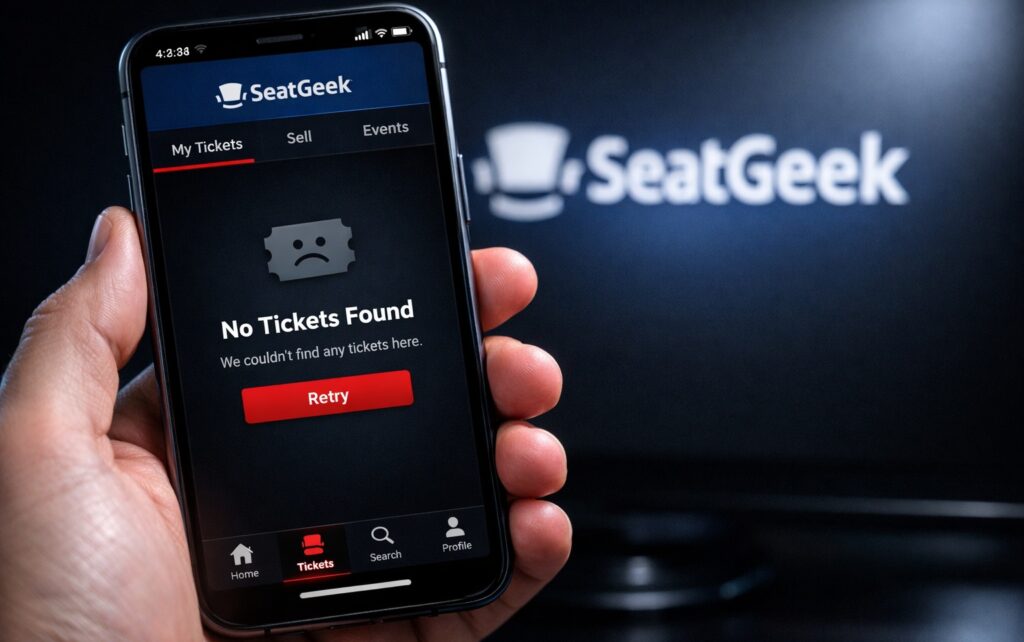
If you have purchased tickets but they are not showing in the SeatGeek app, you are not alone—and in most cases, your tickets are safe. This issue usually occurs when SeatGeek tickets are not showing due to account mismatches, delivery timing delays, app sync problems, or wallet integration issues, rather than a failed or lost order. SeatGeek Tickets Not Showing in App
This guide is written for people who need real fixes, fast, especially when the event date is approaching. We’ll clearly explain why the SeatGeek app is not showing tickets, what to check first, and step-by-step solutions that actually work on both iPhone and Android.
This guide is specifically for users who have already purchased tickets and cannot see them in the SeatGeek mobile app.
Why SeatGeek Tickets Are Not Showing in the App
Before diving into fixes, it helps to understand the most common causes:
- Logged into the wrong account (email/Apple/Google mismatch)
- Tickets aren’t delivered yet (they may be confirmed but not released)
- App sync or cache issues
- Pending ticket transfers you haven’t accepted
- Wallet integration problems (Apple Wallet / Google Wallet)
- Event-day release timing set by the venue or seller
- Outdated app or OS
The good news: most of these are quickly fixable.
Quick Checks before Trying Fixes (Do These First)
Spend two minutes on these checks—they resolve a large percentage of cases.
- Check your purchase email
- Confirm the event name, date, and order number
- Look for language like “Tickets will be delivered closer to the event”
- Verify the email address used
- Make sure it matches the account you’re logged into in the app
- Check order status
- “Confirmed” ≠ “Delivered” (we’ll explain this below)
- Try desktop view
- Log in on a browser—if tickets show there, the issue is app-related
If tickets appear on desktop or in email, do not panic—they’re not gone.
Fix 1: Make Sure You’re Logged into the Correct Account
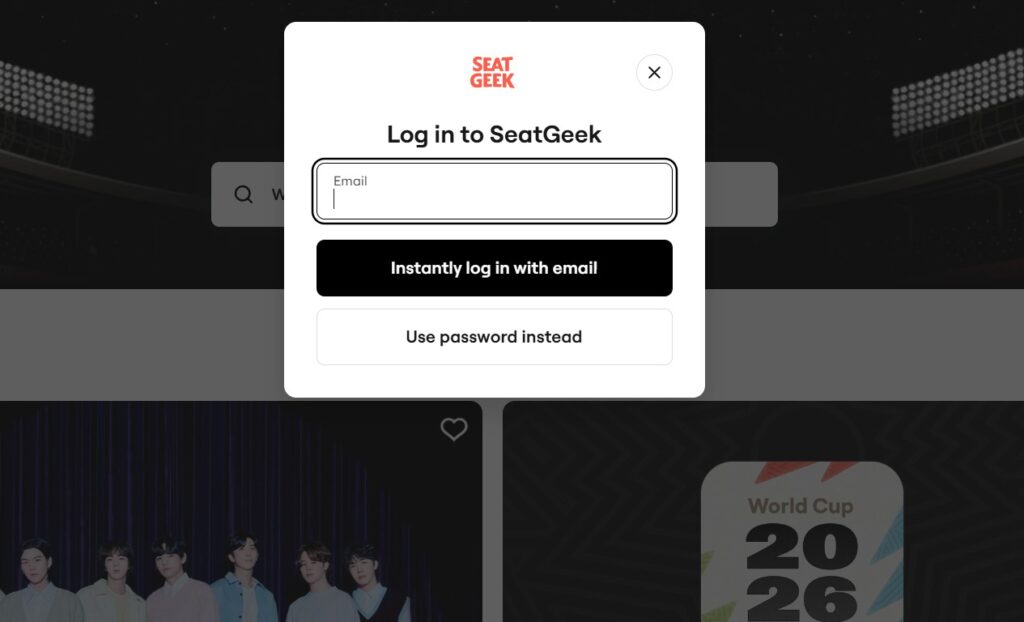
This is the first reason tickets don’t show.
What usually goes wrong?
- You bought tickets using:
- Email + password
- Apple ID
- Google login
- But you’re logged into the app using a different method
How to fix it
- Log out of the app completely
- Log back in using the same method you used at purchase
- If unsure, try logging in with:
- Email/password
- “Continue with Apple”
- “Continue with Google”
Tip: Even a small difference (like dots in Gmail addresses) can create a separate account.
Fix 2: Ticket Delivery Status Explained (Confirmed vs Delivered)
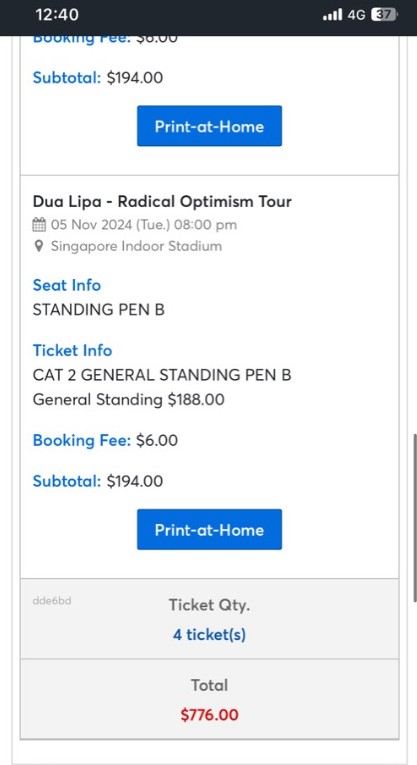
Many users see “confirmed” and assume tickets should be visible immediately.
Here’s the difference:
- Confirmed: Your order is valid and paid
- Delivered: Tickets are released to your account
Why delivery may be delayed
- Venue-controlled release timing
- Seller hasn’t transferred tickets yet
- Event security restrictions
What you should do
- Re-check your email for delivery timing
- Look for phrases like:
- “Available closer to event date”
- “Mobile delivery pending”
Normal delays can range from a few hours to 24–72 hours before the event.
Fix 3: App Cache, Data and Sync Issues
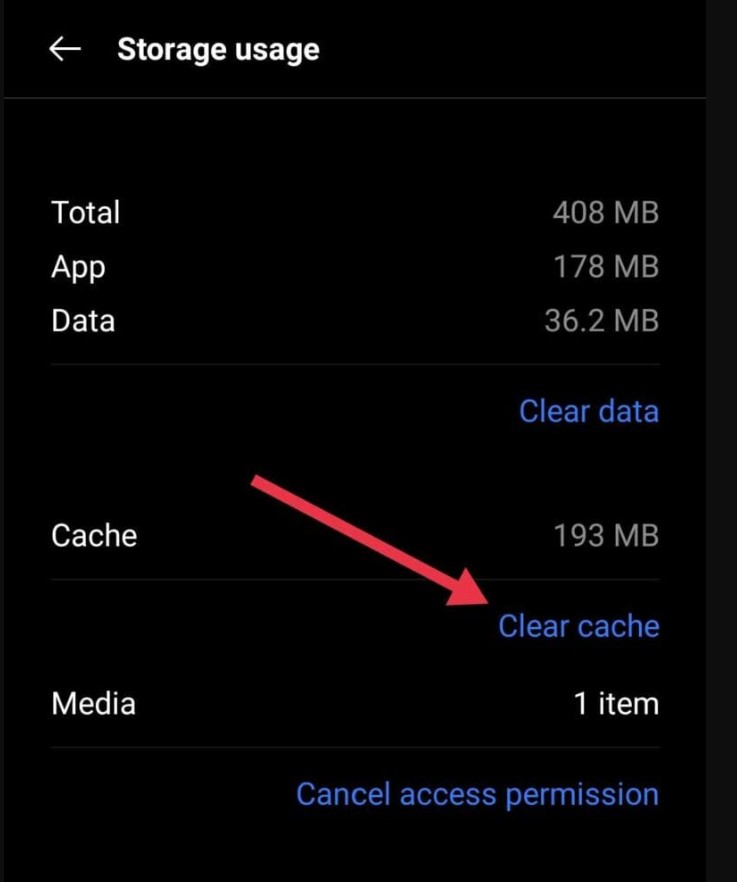
Even when tickets are delivered, the app may fail to refresh.
On iPhone
- Close the app completely
- Restart your phone
- Open the app again
- Pull down on the “My Tickets” screen to refresh
On Android
- Go to Settings → Apps → SeatGeek
- Tap Storage
- Clear Cache (not data, unless needed)
- Reopen the app
This forces the app to resync with the server.
Fix 4: App Update, OS Compatibility and Device Issues
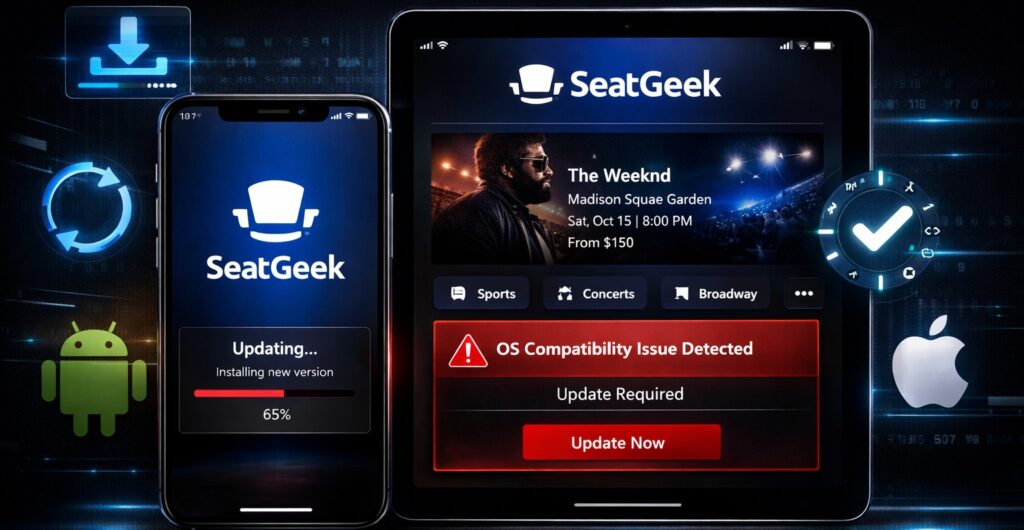
Outdated apps are a silent culprit.
Check these immediately:
- Is the app updated to the latest version?
- Is your phone OS supported?
- Is background app refresh enabled?
Recommended actions
- Update the app from the App Store / Play Store
- Update your device OS if possible
- Disable battery optimization for the app (Android)
Older phones and OS versions may have partial compatibility, causing tickets not to render.
Fix 5: Tickets Not Showing on Event Day — What to Do
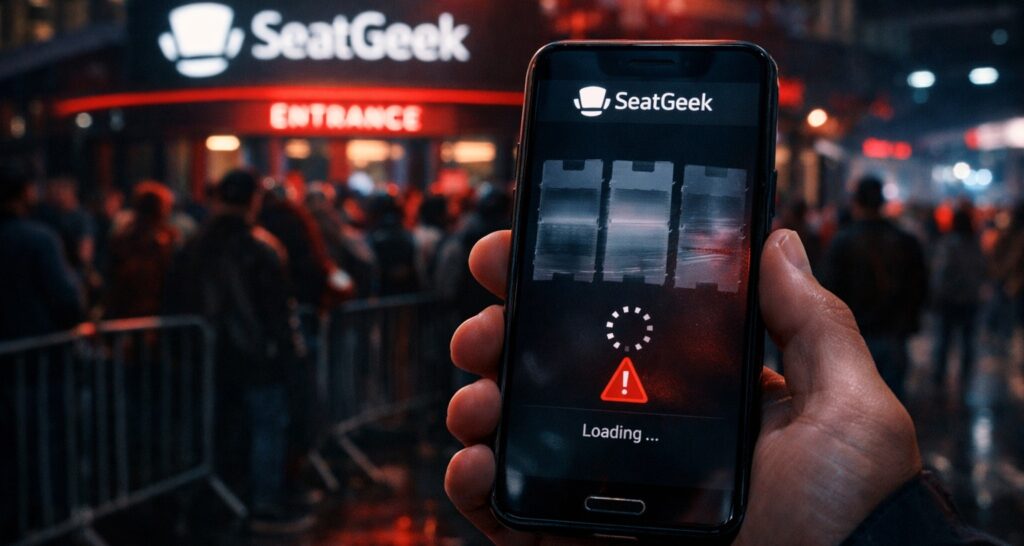
This is when anxiety peaks—but stay calm.
Important things to know
- Some tickets only activate on event day
- Others unlock a few hours before doors open
- High-security events delay ticket visibility intentionally
What works on event day?
- Refresh the app repeatedly
- Check email for a mobile ticket link
- Log in via browser as backup
- Screenshot the ticket only if allowed (some tickets block screenshots)
Many venues only require the barcode to load, which may appear late.
Fix 6: Ticket Transfer, Resale and Pending Acceptance Issues
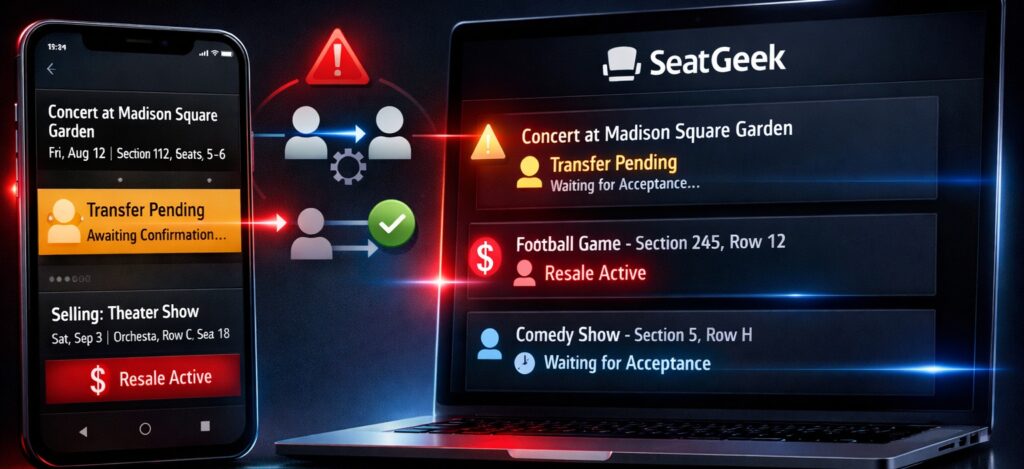
If tickets were transferred to you, they won’t appear until accepted.
Common scenarios
- A friend transferred tickets
- You bought resale tickets
- Transfer email went to spam
What to do
- Search your email for “ticket transfer”
- Open the transfer link
- Accept the tickets
- Log into the app using the same email
Unaccepted transfers = invisible tickets.
Fix 7: Wallet Integration Problems (Apple Wallet / Google Wallet)
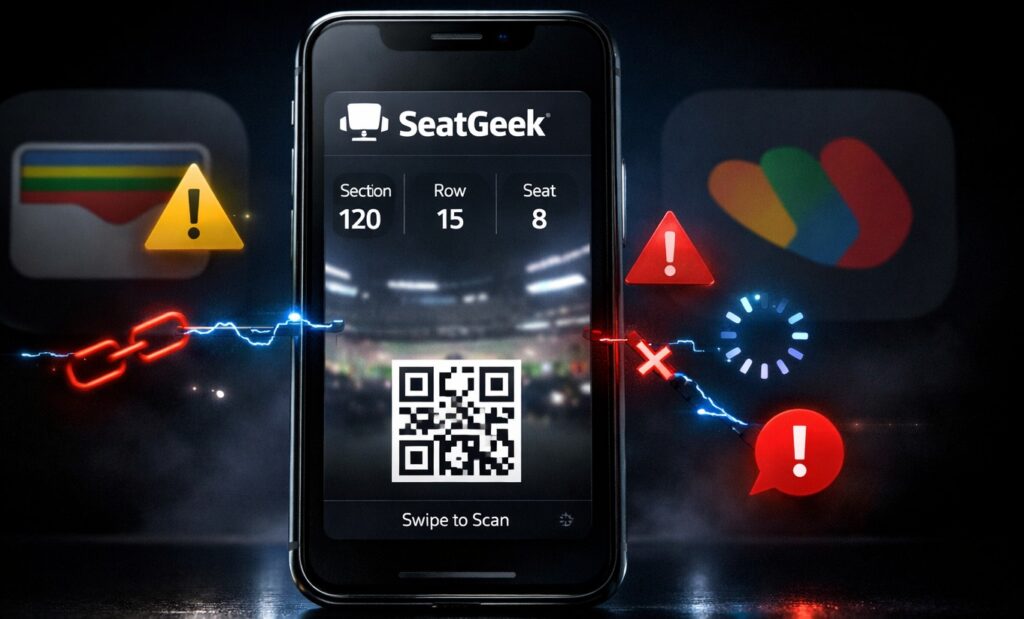
Tickets sometimes live in wallets, not the app.
Apple Wallet
- Check if tickets were added automatically
- Make sure Wallet is enabled for the app
- Restart the phone and re-open Wallet
Google Wallet
- Ensure you’re logged into the correct Google account
- Update Google Wallet app
- Reopen ticket email and tap “Add to Wallet” again
Wallet tickets are valid for entry even if the app is acting up.
Why Tickets Appear in Email but Not in the App
This usually means:
- Delivery is complete
- App sync failed
- Account mismatch exists
What matters most?
If the barcode opens from email, your ticket is legitimate.
Best practice
- Keep the email accessible offline
- Download tickets if the option appears
- Don’t rely on one access method only
Common Myths about Missing SeatGeek Tickets
Myth: Tickets not showing means the order failed
Truth: Payment confirmation means the order exists
Myth: Tickets must show immediately
Truth: Many events delay release intentionally
Myth: App view is the only valid ticket
Truth: Wallet and email tickets are valid at most venues
When Ticket Visibility Delays Are Normal
Delays are expected for:
- High-demand concerts
- Playoffs and finals
- Venue-controlled mobile entry
- Resale tickets with delayed transfer
If your event is more than 48 hours away, waiting is often normal.
How to Prevent This Issue for Future Events
Use these habits to avoid last-minute stress:
- Always save the purchase email
- Log in using a single, consistent method
- Add tickets to Wallet as soon as available
- Update the app before event day
- Avoid switching devices close to the event
Quick Summary Checklist
- Confirm the correct account
- Check delivery status
- Refresh or clear app cache
- Update app and OS
- Check Wallet and email
- Accept any pending transfers
What to Do If Tickets Still Don’t Appear
If you have tried all fixes:
- Use the email ticket link at entry
- Carry your order confirmation
- Arrive early to allow time for verification
In the vast majority of cases, tickets are valid even if the app lags.
Final Assurance
Missing tickets are stressful—but most issues are technical, temporary, and fixable. By following the steps above, you’ll either restore visibility or confirm a valid backup method—so you can focus on enjoying the event, not troubleshooting at the gate.
Frequently Asked Questions (FAQ)
1. Why are my SeatGeek tickets not showing after purchase?
If your tickets are not showing after purchase, it does not usually mean something went wrong with your order. In most cases, this happens due to one of the following reasons:
- Ticket delivery timing: Many venues do not release mobile tickets immediately after purchase. Tickets may remain in a “confirmed” state until closer to the event date.
- Account mismatch: Tickets are tied to the exact login method used during checkout (email, Apple ID, or Google). Logging in with a different method can make tickets appear missing.
- App sync issues: The app may not refresh properly due to cached data, network interruptions, or background refresh restrictions.
What to do first:
Check your confirmation email for delivery details, then make sure you’re logged into the app using the same email or login option used when purchasing. If tickets appear in your email or on desktop, they are valid and not lost.
2. How long does it take for tickets to appear in the app?
There is no single fixed timeline, because ticket visibility depends on the venue, event type, and delivery method.
Common delivery timeframes include:
- Immediately after purchase (for many standard events)
- 24–72 hours before the event
- The morning of the event
- A few hours before doors open (common for high-demand or high-security events)
Delays are especially common for concerts, playoff games, and resale tickets. If your event is still days away, waiting is often normal. Always refer to your purchase email for specific delivery language.
3. Can I enter the venue if tickets aren’t visible in the app?
Yes, you can still enter the venue as long as you have access to a valid ticket barcode, even if the app itself isn’t showing the tickets.
Accepted alternatives usually include:
- Opening the ticket directly from your confirmation email
- Using Apple Wallet or Google Wallet
- Accessing the ticket through a mobile browser
What matters at entry is the scannable barcode, not where it appears. Many venues accept wallet-based or email-accessed tickets without issue.
4. Do tickets appear on the day of the event?
Yes, for many events, tickets intentionally appear on the day of the event.
This is common for:
- High-profile concerts
- Championship games or playoffs
- Events with strict anti-fraud policies
- Mobile-only entry venues
In these cases, tickets may activate only hours before the event starts. This is normal behavior and does not indicate a problem with your purchase. Refresh the app periodically and check your email as event time approaches.
5. Why do my tickets show on desktop but not mobile?
If tickets appear when you log in on a desktop browser but not in the mobile app, the issue is almost always app-related, not order-related.
Common causes include:
- Cached app data preventing updates
- Outdated app version
- Background refresh disabled
- Temporary sync failure
How to fix it:
- Force close and reopen the app
- Refresh the ticket screen
- Clear app cache (Android)
- Restart your phone
- Update or reinstall the app if needed
This situation actually confirms your tickets are valid—the mobile app just hasn’t synced correctly yet.
Recommended Post:
How to Sell Parking Pass on Seatgeek
Teddy Swims Ticket Booking on Seatgeek
How Does Seatgeek Tickets Work for Live Events
How to Sell Taylor Swift Tickets on Seatgeek
Why Seatgeek Can’t Process Your Order
How Does Buying Tickets on Seatgeek Work
How to Sell Tickets on Seatgeek and Stubhub