
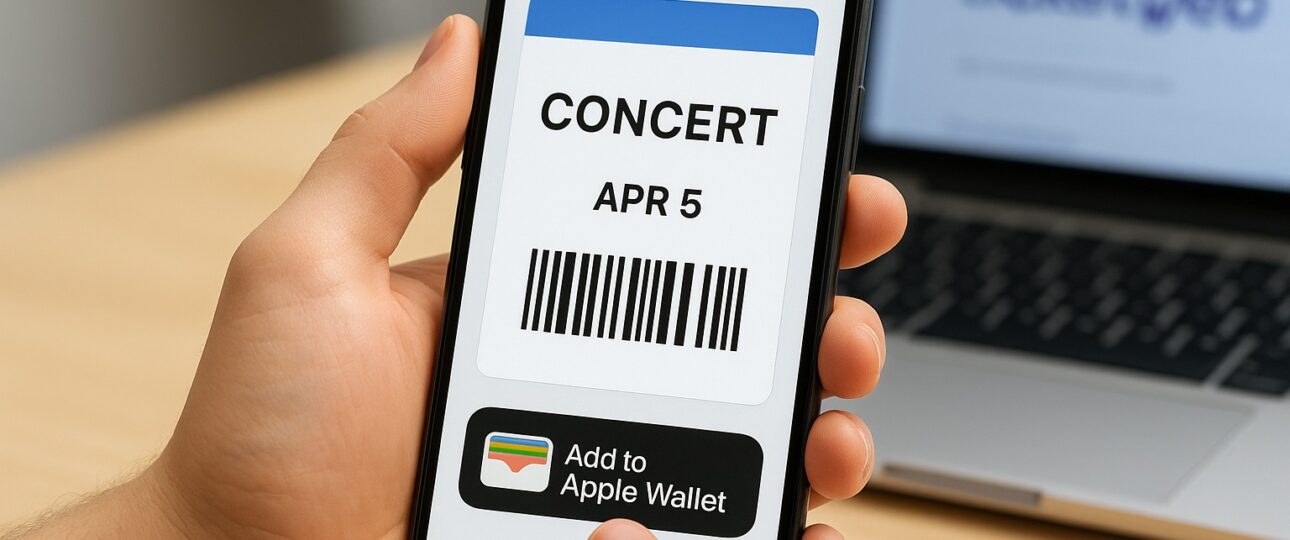
Mobile wallets have changed how people store tickets, passes, and boarding cards, and Apple Wallet offers iPhone and Apple Watch users a quick way to access digital tickets with a simple tap. The main issue arises with platforms like Ticketweb, which do not always provide a direct way to add tickets to Wallet, leading many users to ask how to add Ticketweb tickets to Apple Wallet quickly.
What Exactly Is Apple Wallet?
Apple Wallet is designed to keep digital versions of boarding passes, event tickets, and loyalty cards, all of which can be accessed offline and scanned at venues, removing the need for paper copies and lowering the risk of losing them. It also syncs across iPhone and Apple Watch, giving users added convenience and backup access to their tickets.
How Ticketweb Tickets Work
Ticketweb is a popular ticketing platform for concerts, theater shows, and local events. Affiliated with LiveNation and Ticketmaster, it differs from Ticketmaster because it does not have a dedicated mobile app with built-in Apple Wallet integration.
Ticketweb tickets are typically delivered in one of the following ways:
- Email attachments or links: Tickets sent via email as PDFs or image files.
- Mobile web pages: Tickets accessed through a browser, showing QR codes or barcodes for scanning.
Since there is no direct integration with Apple Wallet, the process to add Ticketweb tickets is less straightforward, but with the right steps, you can still transfer them to Apple Wallet or keep a reliable backup for easy access.
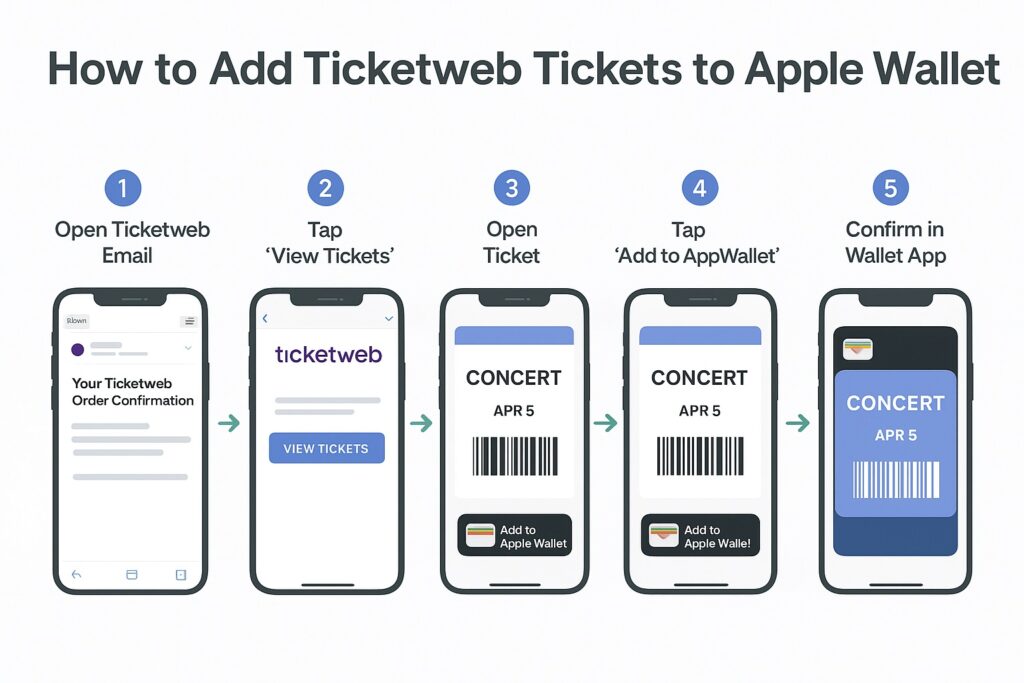
Here’s how to add Ticketweb tickets to Apple Wallet:
-
Check for the “Add to Apple Wallet” Option
After purchasing your ticket, the first step is to check whether Apple Wallet support is built in.
- Open the Ticketweb confirmation email on your iPhone or mobile device.
- Look for an “Add to Apple Wallet” icon or link.
- If available, tap the icon and follow the onscreen prompts.
- The ticket should then appear in your Apple Wallet, ready for scanning at the venue.
Note: Many Ticketweb tickets, particularly PDF or print-at-home formats, do not provide this option.
-
Access Tickets via Mobile Browser
Some Ticketweb tickets are accessible through a mobile-friendly webpage.
- Open the ticket link using Safari on your iPhone (Apple Wallet integration often doesn’t work on desktop browsers).
- Check for an “Add to Apple Wallet” button embedded on the page.
- Tap the button and confirm by selecting Add in the upper-right corner.
This method works for tickets that are delivered as web-based barcodes or QR codes.
-
Screenshots and PDFs (Unofficial Methods)
Apple Wallet does not natively support PDFs or screenshots. If your Ticketweb ticket is only available as a PDF attachment or image, your options are limited:
- Screenshot Method: Capture the ticket barcode using your phone’s screenshot feature and store it in your Photos app for offline access. This is not official Wallet integration, but it ensures you have your ticket handy.
- Third-Party Apps: Some apps claim to convert PDFs into Wallet passes, but success is not guaranteed, and some venues may not accept them.
-
Use Ticketmaster or LiveNation Apps (If Applicable)
For larger events, Ticketweb tickets may be linked to Ticketmaster or LiveNation accounts. In such cases, you may be able to:
- Download the Ticketmaster app.
- Log in using your event credentials.
- Locate your ticket under My Tickets.
- Tap Add to Apple Wallet if the option is available.
Caution: Barcodes may sometimes disappear during transfers, so always double-check before arriving at the venue.
Common Issues When Adding Ticketweb Tickets to Apple Wallet
Despite your best efforts, not all Ticketweb tickets can be added to Apple Wallet. Here’s why:
- Print-at-home or PDF tickets generally cannot be added.
- Certain venues may restrict mobile wallet ticketing for security reasons.
- Tickets purchased via phone or marked for Will Call pickup often cannot be added.
- The “Add to Apple Wallet” button may only appear in certain browsers or devices.
If you face problems, try these solutions:
- Check if the ticket has already been added to another device’s Wallet.
- Turn off VPN or privacy-relay settings that may affect syncing.
- Open the ticket using Safari on your iPhone.
- Save a screenshot as a backup if nothing works.
- Contact Ticketweb phone number for further help.
How to Add Any Digital Ticket, Including Ticketweb, to Apple Wallet?
Even if the ticket is not from Ticketweb, these steps are broadly applicable:
Step 1: Access Your Ticket
Open your ticket via email, text, notification, or the vendor’s app. If the ticket was emailed as a link, navigate to it on Safari.
Step 2: Locate the “Add to Apple Wallet” Button
Look for the Apple Wallet icon in your email or ticket page. Tap it and confirm addition.
Step 3: Verify Ticket in Apple Wallet
Double-click the side button on FaceID-enabled iPhones and check that your ticket appears.
Step 4: Present Ticket at Venue
Open your device, access Apple Wallet, and scan the barcode or QR code displayed on your ticket at the venue’s entry point.
Key Takeaways
Apple Wallet makes event check-ins easier and reduces the need for paper tickets, but Ticketweb tickets are not always compatible. To avoid problems, check for the Add to Apple Wallet button in your email or app, and use Safari to access mobile-friendly tickets. Keep screenshots as backups, and when possible, use Ticketmaster or LiveNation apps for smoother Wallet integration.
By knowing how to add Ticketweb tickets to Apple Wallet and confirming your ticket format and venue requirements in advance, you can ensure quick, hassle-free entry to concerts, shows, and events while enjoying the convenience of digital ticketing.
FAQs
- Is Every Ticketweb Ticket Compatible with Apple Wallet?
- Compatibility depends on delivery format. Print-at-home PDFs usually cannot be added.
- Can I Use a PDF-Creating App to Add Tickets to Wallet?
- Some apps attempt this, but success is not guaranteed. Venues may require original scannable barcodes.
- Can I Share My Wallet Ticket with Another Person?
- Only if the vendor allows ticket transfer. Ticketweb tickets rarely support direct sharing in Wallet.
- Can I Add a Screenshot of My Ticket to Apple Wallet?
- Apple Wallet does not accept screenshots. Saving it in Photos is the best backup.