Ticketmaster is a popular platform for buying tickets to concerts, sports events, and shows. It’s easy to use and helps millions of people get seats to their favorite events. But sometimes, things go wrong, and you see an error message that stops you from getting those tickets. One common issue is Ticketmaster error code 0007. If you have seen this error, you know how frustrating it can be. However, you can fix it!
What Is Ticketmaster Error Code 0007?
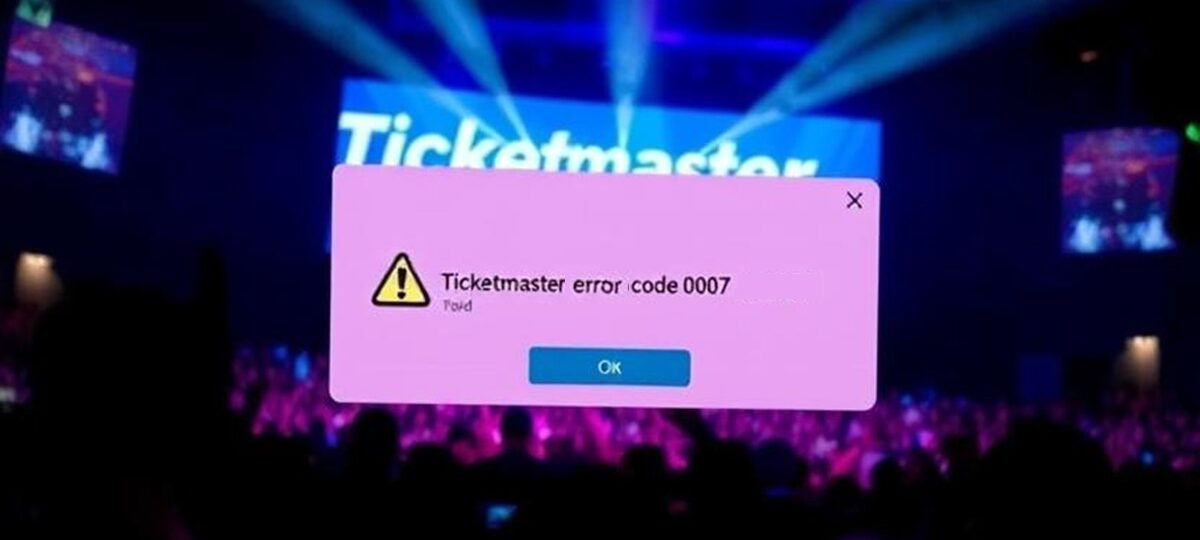
When you try to buy tickets on Ticketmaster and see the message, “Sorry, we could not process your request, please try again later. Error Code: 0007, you have hit the Ticketmaster 0007 error code. This error means the transaction to book your ticket is taking too long to complete. It’s like when your computer freezes because it’s trying to do too much at once. The system times out, and you get this error instead of your tickets.
This issue can happen at any point during the ticket-buying process, like when you are picking seats or entering payment details. It’s especially common during high-demand events, like concerts by big artists or playoff games, when lots of people are trying to buy tickets at the same time.
Why Does Error Code 0007 Happen on Ticketmaster?
There are several reasons why you might see error code 0007 Ticketmaster. Understanding these causes can help you figure out how to fix it. Here are the main reasons:
- Corrupted Browser Cache and Cookies: Your browser stores small files called cookies and cache to make websites load faster. If these files get old or corrupted, they can mess up your connection to Ticketmaster’s website, causing the 0007 error code Ticketmaster.
- Slow or Unstable Internet Connection: If your internet is slow or keeps cutting out, the transaction can take too long, leading to a timeout and the Ticketmaster error code: 0007.
- Internet Service Provider (ISP) Issues: Sometimes, your ISP blocks or restricts access to Ticketmaster, which can trigger this error.
- Using Multiple Devices or Browsers: If you are logged into Ticketmaster on more than one device or browser tab, the system might think you’re a bot (an automated program) and block you, causing the error code 0007 meaning Ticketmaster.
- Browser Compatibility Problems: If your browser is outdated or not fully compatible with Ticketmaster, you might see this error.
- Server Overload: During high-demand events, Ticketmaster’s servers can get overwhelmed with traffic, leading to delays and errors like Ticketmaster 0007 error code.
- VPN or Proxy Issues: If you’re using a VPN (Virtual Private Network) or proxy, it can interfere with Ticketmaster’s system, causing the error.
- Payment Processing Problems: Issues with your payment method, like a declined card or slow processing, can also cause the transaction to fail.
How to Fix Ticketmaster Error Code 0007
Don’t worry if you see error code 0007 Ticketmaster. There are several easy steps you can take to fix it. Try these solutions one by one until the problem is gone.
-
Check Ticketmaster’s Server Status

Before you do anything else, make sure the problem isn’t on Ticketmaster’s end. If their servers are down or overloaded, you’ll get errors like Ticketmaster error code 0007. Here’s how to check:
- Visit a website like DownDetector or IsItDownRightNow.
- Search for “Ticketmaster” to see if other users are reporting issues.
- If the servers are down, wait a while and try again later.
- If the servers are up and running, move on to the next step.
-
Clear Your Browser’s Cache and Cookies

Corrupted cache and cookies are a common cause of Ticketmaster error code: 0007. Clearing them can fix the issue. Here’s how to do it on popular browsers:
- Google Chrome
- Open Chrome and click the three dots in the top-right corner.
- Go to More Tools > Clear Browsing Data.
- Set the time range to All Time.
- Check the boxes for Cookies and other site data and Cached images and files.
- Click Clear Data.
- Restart Chrome and try Ticketmaster again.
- Microsoft Edge
- Open Edge and click the three dots in the top-right corner.
- Go to Settings > Privacy, Search, and Services.
- Under Clear browsing data, click Choose what to clear.
- Select Sign out first, then set the time range to All Time.
- Check all the boxes and click Clear Now.
- Restart Edge and check if the error is gone.
- Firefox
- Open Firefox and click the menu button (three lines) in the top-right corner.
- Go to Settings > Privacy & Security.
- Scroll to Cookies and Site Data and click Clear Data.
- Check Cookies and Site Data and Cached Web Content, then click Clear.
- Restart Firefox and try again.
- Safari
- Open Safari and click Safari in the top menu.
- Go to Preferences > Privacy.
- Click Manage Website Data and select Remove All.
- Close Safari, reopen it, and try Ticketmaster.
After clearing the cache and cookies, go back to Ticketmaster and see if the 0007 error code Ticketmaster is fixed.
-
Use a Different Browser
Sometimes, the browser you’re using might not work well with Ticketmaster. If you’ve cleared the cache and still see error code 0007 Ticketmaster, try a different browser. For example, if you’re using Chrome, switch to Firefox or Edge. Ticketmaster recommends using Google Chrome for the best experience.
You can also try using Incognito Mode or a private browsing window. This mode doesn’t use existing cookies or cache, which can help avoid the error. Here’s how to open Incognito Mode:
- Chrome: Press Ctrl + Shift + N (Windows) or Command + Shift + N (Mac).
- Edge: Press Ctrl + Shift + P (Windows) or Command + Shift + P (Mac).
- Firefox: Press Ctrl + Shift + P (Windows) or Command + Shift + P (Mac).
- Safari: Press Command + Shift + N.
Log into Ticketmaster in Incognito Mode and try buying your tickets again.
-
Check Your Internet Connection
A slow or unstable internet connection can cause Ticketmaster 0007 error code. Here’s how to make sure your connection is strong:
- Restart your router by unplugging it for 30 seconds and plugging it back in.
- If you’re using Wi-Fi, try moving closer to the router or switching to a wired connection.
- Turn off your device’s data connection, enable Airplane Mode for a minute, then turn it back on.
- If possible, connect to a different network, like your phone’s hotspot.
- After fixing your connection, try Ticketmaster again.
-
Disable VPN or Proxy
Using a VPN or proxy can confuse Ticketmaster’s system, leading to error code 0007 meaning Ticketmaster. If you’re using one, turn it off:
- On your computer, go to your VPN app or settings and disconnect.
- On Windows, check Settings > Network & Internet > VPN and remove any VPN connections.
- On a Mac, go to System Preferences > Network and disable any VPN.
- Once the VPN is off, try Ticketmaster again.
-
Use One Device and Browser
Ticketmaster doesn’t like it when you’re logged in on multiple devices or browser tabs. This can make the system think you’re a bot, causing Ticketmaster error code 0007. To avoid this:
- Log out of Ticketmaster on all devices and browsers.
- Clear your browser’s cache (as explained above).
- Log back in using only one device and one browser tab.
-
Try the Ticketmaster Mobile App
If the website keeps giving you error code 0007 Ticketmaster, try using the Ticketmaster mobile app. The app can be more stable during high-traffic events. Here’s how:
- Download the Ticketmaster app from the Google Play Store (Android) or App Store (iOS).
- Make sure the app is updated to the latest version.
- Log in and try buying your tickets.
If you’re already using the app and still see the error, clear the app’s cache:
- On Android: Go to Settings > Apps > Ticketmaster > Storage > Clear Cache.
- On iOS: You may need to uninstall and reinstall the app.
-
Check Your Payment Details
Sometimes, Ticketmaster error code: 0007 happens because of payment issues. Double-check your payment method:
- Make sure your card details (number, expiration date, and CVV) are correct.
- Ensure your card has enough funds.
- Try a different card or payment method, like PayPal, if available.
-
Contact Ticketmaster Support
If none of the above steps work, it’s time to reach out to Ticketmaster’s support team. Here’s how:
- Visit help.ticketmaster.com.
- Look for the Contact Us section.
- Take a screenshot of the 0007 error code Ticketmaster message and include it in your message to support.
- Explain what you’ve already tried (like clearing cache or switching browsers).
To resolve your issue as quickly as possible, call the Ticketmaster phone number and speak to a representative.
-
Use Another Device
In some cases, the problem might be with your device. If you’ve tried everything else, use a different device, like your phone, tablet, or another computer. Make sure to log out of Ticketmaster on your original device first.
Dealing with Ticketmaster error code: 0007 can be a real pain, especially when you are trying to get tickets to a concert or game you are excited about. But with the steps above, you should be able to fix the problem and secure your tickets.
Recommended Ticketmaster Error
Ticketmaster Error Code U103
Ticketmaster Error Code U534
Error U226 Ticketmaster
Ticketmaster Code Error U003
U504 Error Ticketmaster
Ticketmaster Error Code U505
Ticketmaster Error Code U215
How to Fix Ticketmaster Error Code U307