
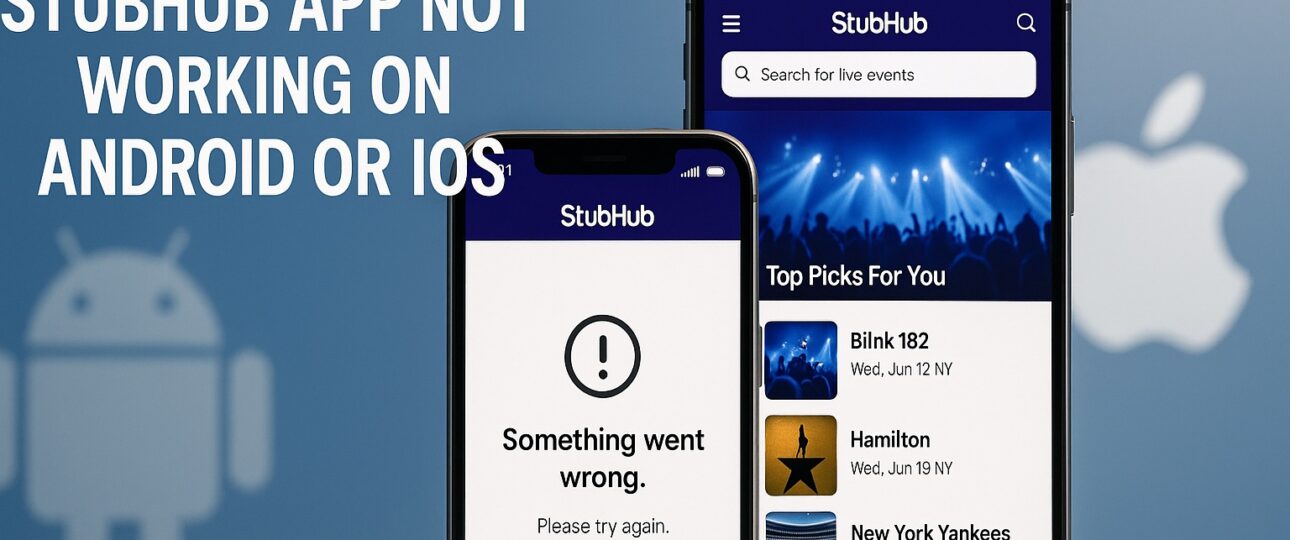
When you rely on StubHub to buy or sell event tickets, any technical glitch can cause major confusion. If you find your StubHub not working or face issues with the app, checkout page, or listing buttons, you are not alone. In 2025, as more people access StubHub via mobile or desktop, temporary glitches, outdated app versions, or login issues have become common. StubHub App Not Working
Common Issues When StubHub Is Not Working
Users frequently report errors involving account logins, payment failures, ticket uploads, and mobile app crashes. If you are wondering, is Stubhub not working right now, the first step is identifying which part of the platform is malfunctioning.
Below are the most common areas where users experience problems:
- App not working on Android or iOS devices.
- Checkout not working during the payment process.
- Accept tickets option not working when receiving tickets from sellers.
- Create listing button not working while listing tickets for sale.
- Get tickets button not working when downloading purchased tickets.
- Verification code not working during login or verification.
- Promo code not working during discount or offer usage.
Each issue arises due to different technical or account-related reasons. Let’s go step by step to fix them.
Step 1: When StubHub App Not Working
If the StubHub app not working on your phone, first check for compatibility and version updates. The app may behave unexpectedly after an iOS or Android system update.
Try these solutions:
- Update the StubHub App: Go to the App Store or Google Play Store and check for any updates. Outdated versions often cause login loops or blank screens.
- Force Close and Reopen: Swipe away the StubHub app completely and relaunch it. This refresh clears temporary internal processes.
- Clear Cache/Data (Android): Navigate to Settings → Apps → StubHub → Storage → Clear Cache and Clear Data.
- Restart Your Device: Restarting eliminates minor background memory glitches causing app crashes.
- Check Internet Connection: Stubhub requires a stable connection. Switch from Wi-Fi to mobile data, or vice versa, and retry logging in.
If after these steps your Stubhub app not working issue persists, uninstall and reinstall the app. Make sure you log in using the same credentials you originally used (especially if you signed in using Apple ID or Facebook).
Step 2: StubHub Not Working on Desktop or Browser
Sometimes it’s not the app but the website itself causing issues. Users searching Stubhub not working often face blank pages, slow loading, or login rejection due to cookies or cached data stored in the browser.
Quick Fixes:
- Clear Cookies and Cache: Cached files can interfere with login sessions. Clear your browser’s cookies and temporary internet files.
- Use New Browser or Window: Try logging into your StubHub account in a different browser (Chrome, Firefox, Safari, or Edge).
- Check Login Method: Did you sign up using Apple, Facebook, or Google? You must use the same login method to access your account successfully.
- Check Email and Password: Make sure your email address is correctly spelled. Simple typos often cause login errors.
- Disable Browser Extensions: Extensions like ad-blockers can disrupt page functions such as checkout or listing ticket buttons.
If none of these resolve the issue, open Stubhub in an incognito/private browser window and log in again. This ensures a fresh session without cached data conflicts.
Step 3: StubHub Checkout Not Working
If Stubhub checkout not working is preventing your ticket purchase, the problem may lie in payment authorization, expired cards, or temporary server outages.
Possible reasons and solutions:
- Payment Declined: Recheck your card’s CVV, billing address, and expiration date. Incorrect details will prevent successful payment.
- Browser Timeout: If the checkout page takes too long, refresh your connection or try a different browser.
- Mobile Payment Blocked: Try completing the payment from your desktop computer. Some mobile browsers limit payment pop-ups.
- Server Overload: High-traffic events cause slow checkout. Wait a few minutes and retry after clearing cache.
- Ad Blockers: Temporarily disable or whitelist StubHub in your ad blocker to ensure all scripts load correctly.
If multiple payment attempts fail, contact your card issuer to verify Stubhub transactions aren’t being flagged for security.
Step 4: StubHub Accept Tickets Not Working
When Stubhub accept tickets not working appears, it means you cannot claim tickets shared or transferred to your account.
Here are the possible causes:
- You are logged into a different email ID from the one used by the seller.
- The event organizer’s platform is delaying transfer confirmation.
- Browser extensions or pop-up settings block transfer prompts.
Fix it with these steps:
- Open the ticket acceptance email and click “Accept Tickets.”
- Log in with the same account email displayed in your StubHub confirmation.
- Disable any browser pop-up blockers and retry.
- Use a desktop browser instead of mobile app, as some transfers only complete on desktop.
If the Stubhub accept tickets not working issue continues, check your spam or junk email folders for secondary verification mail from the transfer platform (Ticketmaster, AXS, etc.).
Step 5: StubHub Create Listing Button Not Working
Many sellers face Stubhub create listing button not working when attempting to list tickets online. This happens primarily due to expired sessions, browser compatibility, or system maintenance.
Quick solutions:
- Refresh the page and log in again.
- Clear cookies and retry from a private/incognito window.
- Use a different browser because Chrome tends to work best with StubHub tools.
- Ensure the event is still open for resale (some events disable resale close to performance date).
If the button still doesn’t respond, visit your My Tickets page and check if the event is already listed or pending verification.
Step 6: StubHub Get Tickets Button Not Working
If you’ve paid but can’t retrieve your tickets, and the Stubhub get tickets button not working, it may be due to ticket delivery delays or browser malfunctions.
Try these:
- Wait until StubHub confirms delivery. Event organizers sometimes send tickets a few hours before the event.
- Check your transaction confirmation email because it often includes a direct link to your tickets.
- Disable ad blockers and attempt to open “My Tickets” from another browser.
- For mobile users, open the StubHub app → My Tickets → Event → View Tickets.
If it’s still inaccessible after trying different devices, StubHub customer support can regenerate or resend the ticket delivery email.
Step 7: StubHub Verification Code Not Working
The Stubhub verification code not working issue commonly appears when logging in from a new device or after reinstalling the app.
Possible reasons:
- The code expires quickly, usually within a few minutes.
- Spam filters in your email or SMS block incoming Stubhub codes.
- Internet latency delays the delivery of verification messages.
Fix steps:
- Request a new verification code.
- Check all email folders, including spam, promotions, and junk.
- Add StubHub’s email domain to your “safe sender” list.
- Ensure your phone can receive international SMS (if applicable).
- After entering the new code, you should regain access to your account.
Step 8: StubHub Code Not Working (Promo or Discount Code)
If your Stubhub code not working during checkout, these steps usually help resolve it:
- Check Expiry: Promo codes have expiration dates. Make sure it’s still valid.
- Minimum Order Requirements: Many codes apply to orders above a certain value.
- Check Event Exclusions: Some events or resale tickets are excluded from promo codes.
- Correct Typing: Enter the promo code exactly as shown because case sensitivity matters.
If the code is valid but still shows “not applicable,” contact Stubhub phone number for manual adjustment.
Additional Connectivity Checks
Sometimes when Stubhub not working, the problem lies outside the app or website. Internet, VPN, or firewall restrictions block certain website features. Before contacting support, conduct the following connectivity checks:
- Restart your router or switch to mobile data
- Disable VPN or Firewall programs temporarily.
- Check StubHub’s system status via social media or third-party outage reporting sites.
- Test on another device. If StubHub opens normally elsewhere, your original device settings may be the problem.
Browser Compatibility and Device Settings
For stability, StubHub recommends using Google Chrome or Safari with updated versions of Windows, macOS, iOS, or Android.
Tips for smooth performance:
- Keep location access enabled.
- Enable JavaScript to load payment gateways.
- Allow cookies for session management.
- Avoid multiple simultaneous logins with different accounts.
By keeping these settings optimized, you’ll prevent many Stubhub not working situations before they occur.
How to Contact StubHub Support?
If after all troubleshooting, your Stubhub not working problem persists, StubHub support can help verify account access, resend tickets, or fix payment holds.
You can contact them through:
- Help Center Chat: Available on StubHub.com customer support section.
- Twitter or X Support Handle: Often replies faster during outages.
- Call: Contact on Stubhub phone number to connect with a representative for a quick assistance.
Keep details handy such as your order number, event name, and registered email to speed up assistance.
How to Prevent Future StubHub Errors?
While some disruptions happen due to StubHub system maintenance or heavy traffic, you can reduce future risk with a few best practices:
- Always update your app and clear cache before major purchases.
- Double-check login credentials and use password managers.
- Save ticket confirmation emails immediately after purchase.
- Avoid making purchases during system maintenance (usually listed on StubHub’s support pages).
- Add [email protected] to your email contact list.
Following these preventive measures ensures your sessions remain smooth and uninterrupted.
The Bottom Line
When you face Stubhub not working, it’s usually fixable through basic account checks, clearing cache, and verifying internet connection. The Stubhub app not working issue often resolves with an update or reinstall, while checkout and button issues relate mostly to browsers or temporary server hiccups.
If you see messages like Stubhub accept tickets not working, Stubhub checkout not working, or Stubhub verification code not working, stay calm and follow the step-by-step procedures shared above. Often, a few quick actions like logging in through the correct account method such as Apple or Facebook, clearing cookies, or verifying payment details help restore seamless access.