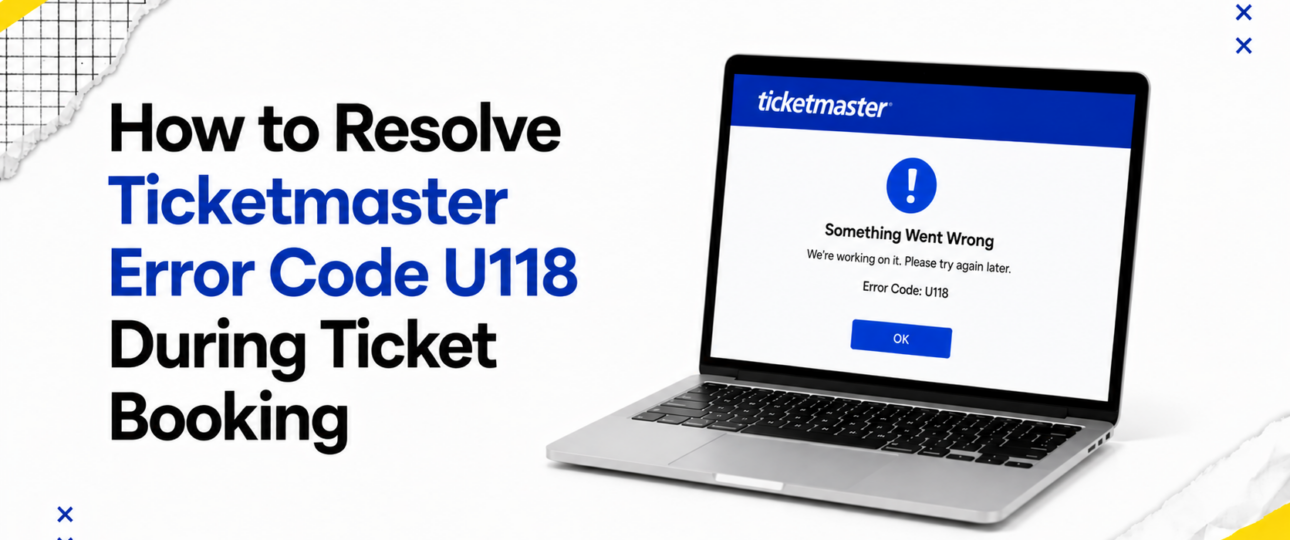
Ticketmaster, like most large ticketing platforms. Uses a system of internal error codes to flag problems that happen behind the scenes during login, browsing, or checkout. Error code: u118 ticketmaster displays is one of these internal markers rather than a detailed explanation, which is why it can feel a little cryptic to the average user.
Broadly speaking, codes in this format tend to point towards a session or verification issue somewhere between your device, your browser, and Ticketmaster’s servers. That might mean your login session has expired, a security check has failed to complete, or a temporary server-side hiccup has interrupted the process partway through.
It’s worth being upfront here: Ticketmaster has not published a full, official breakdown of every individual error code, including U118. The explanations in this article are based on the behaviour commonly reported by users, publicly available support guidance. The typical patterns seen across similar ticketing and e-commerce platforms. Treat this as a practical troubleshooting resource rather than an official technical specification.
Because the exact trigger isn’t publicly documented. The smartest approach is a systematic one: work through fixes from the simplest and quickest to the more involved, rather than guessing at random. That’s exactly the structure this guide follows.
Why You Might See Error Code U118
There isn’t a single cause behind this error. Instead, a handful of overlapping factors tend to be responsible, often depending on what you were doing when it appeared.
- Browser session conflicts: Having multiple Ticketmaster tabs open, or being logged into more than one account in the same browser, can confuse the session your device is trying to maintain with Ticketmaster’s servers.
- Temporary server-side interruptions: During major on-sales, Ticketmaster’s systems handle enormous spikes in traffic. Brief interruptions or delays on their end can surface as an error on your screen, even when nothing is wrong with your device.
- Login verification problems: Two-factor checks, CAPTCHA prompts, or account verification steps that don’t complete properly can trigger a session error partway through.
- Expired browsing sessions: Ticketmaster sessions, particularly during busy queues, are time-limited. Spending too long deciding on seats or filling in details can cause your session to time out.
- Payment validation delays: A slow response from your card issuer or payment provider during the final stages of checkout can sometimes present as a Ticketmaster error rather than a payment-specific one.
- Internet connection issues: A patchy Wi-Fi signal or a mobile connection that drops for even a second can interrupt communication between your device and Ticketmaster’s servers at a critical moment.
- VPN or proxy usage: Ticketmaster’s fraud and bot-prevention systems are sensitive to unusual network behaviour, and a VPN or proxy can occasionally be flagged, disrupting your session.
- Browser compatibility: Older browser versions, or browsers with outdated cached data, don’t always handle Ticketmaster’s checkout scripts correctly.
- Mobile app glitches: An outdated version of the Ticketmaster app, or one that hasn’t been fully closed and reopened in a while, can develop small glitches that produce errors like this one.
- Heavy traffic during ticket launches: Popular on-sales bring huge numbers of people onto the platform within seconds. This kind of Ticketmaster checkout issue is far more common during a big launch than on a quiet browsing day.
How to Diagnose the Problem
Before working through fixes, it helps to notice exactly when the error appeared. The timing is a genuinely useful clue, and it can save you from trying steps that won’t make a difference.
- During login — this usually points to a Ticketmaster login error linked to session or verification problems rather than anything related to payment.
- While joining a queue — often tied to traffic volume or a Ticketmaster queue issue during a high-demand on-sale.
- At checkout — commonly connected to session expiry or a browser conflict as you move between pages.
- During payment — may relate to a Ticketmaster payment problem, such as a delay validating your card details.
- When accessing account information — usually a sign of a Ticketmaster account error or an authentication hiccup.
- While transferring tickets — often linked to account verification or a temporary server issue affecting that specific feature.
Once you know roughly where in the process the error appeared. You can skip straight to the most relevant fixes below rather than working through every single one. Ticketmaster error code u004
Step-by-Step Fixes
Work through these in order. Start with the quickest options first, since many people find their issue resolves before they need to reach the more advanced steps.
- Refresh the session: A simple page refresh can reset a stuck session and clear a one-off glitch, since it forces your browser to request a fresh connection to Ticketmaster’s servers.
- Sign out and sign in again: This clears any conflicting session data tied to your account and starts a clean authentication process, which resolves many login-related errors.
- Clear your browser cache: Old cached files can clash with updated versions of Ticketmaster’s site, causing scripts to misfire. Clearing the cache forces your browser to load everything fresh.
- Remove old cookies: Cookies store session and login information, and outdated or corrupted cookies are a common cause of unexpected errors. Removing them and reloading the site gives you a clean slate.
- Try a different browser: Switching from, say, Chrome to Firefox or Safari rules out a browser-specific compatibility problem and often gets you straight past a stubborn error.
- Try another device: Moving to a different phone, tablet, or computer isolates the issue to your original device, and can be a quick workaround during time-sensitive on-sales.
- Update the Ticketmaster app: An outdated app version can carry bugs that have already been fixed in newer releases, so checking your app store for updates is worth doing early.
- Restart your device: This clears background processes and temporary memory issues that can interfere with the app or browser running smoothly.
- Disable browser extensions: Ad blockers, VPN extensions, and privacy tools can interfere with Ticketmaster’s checkout scripts. Turning them off temporarily often resolves a Ticketmaster browser problem quickly.
- Turn off any VPN: Because VPNs can trigger fraud-prevention checks, disabling one and reconnecting directly often clears verification-related errors.
- Switch internet connections: Moving from Wi-Fi to mobile data, or vice versa, can help when the original issue was a connection drop rather than anything account-related.
- Wait before retrying: During major on-sales, giving it ten to fifteen minutes before trying again allows server load to ease, particularly useful when the error is tied to heavy traffic.
- Contact Ticketmaster Support: When none of the above works, or the same error keeps reappearing across devices and connections, it’s time to get in touch with their support team directly for account-specific help.
Quick Diagnostic Table
| Where the Error Appears | Most Likely First Step |
| During login | Sign out and sign back in |
| Joining the queue | Wait a few minutes, then rejoin |
| Selecting seats | Refresh the session |
| At checkout, before payment | Clear cookies and cache |
| During card payment | Try a different payment method |
| On the mobile app | Update the app to the latest version |
| Using a VPN | Disable the VPN and reconnect |
| After a long idle period | Sign out, refresh, and start again |
| On an older browser | Switch to an updated browser |
| Transferring tickets | Sign out, sign in, and retry the transfer |
Preventing Ticketmaster Error Code U118
A little preparation goes a long way, especially ahead of a busy on-sale.
- Prepare your account before ticket sales: Log in, confirm your details are correct, and make sure your password is up to date well before the sale begins.
- Keep browsers and apps updated: Running the latest version of your browser or the Ticketmaster app reduces the odds of a Ticketmaster app issue caused by outdated software.
- Use reliable internet: A stable Wi-Fi or wired connection is far less likely to drop mid-checkout than a weak mobile signal.
- Avoid multiple simultaneous sessions: Stick to one browser tab and one device to prevent session conflicts.
- Log in before tickets go live: Joining the queue already signed in removes one extra step that can go wrong under pressure.
- Save payment details in advance: Having your card details ready and verified with your bank cuts down on delays at the payment stage.
- Avoid unnecessary browser extensions: Disable ad blockers or VPN tools before you start, rather than discovering a conflict mid-checkout.
Mistakes That Can Delay a Solution
A handful of understandable reactions can actually make things harder to fix.
- Constant page refreshing: Repeatedly refreshing during a queue can reset your position or trigger additional session errors, undoing the progress you’d already made.
- Opening multiple checkout windows: This is one of the most common causes of a Ticketmaster account error, since competing sessions confuse the system about which one is active.
- Repeated login attempts in quick succession: Rapid, repeated attempts can look like suspicious activity to Ticketmaster’s security systems, sometimes leading to a temporary lock.
- Switching devices too frequently: Jumping between devices without finishing a session on one can leave several sessions open at once, increasing the chance of a conflict.
- Re-entering payment information unnecessarily: Repeated attempts to enter card details can trigger extra fraud checks from your bank, slowing the process further.
- Ignoring software updates: Skipping an available update leaves known bugs in place that a simple update would have already resolved.
Staying patient and working through fixes methodically, rather than reacting instinctively. Is genuinely one of the most effective troubleshooting tools available. Ticketmaster error code u102
Wrapping It Up!
Seeing Ticketmaster error code u118 in the middle of booking tickets is frustrating, especially when the clock is ticking on a popular on-sale. The reassuring part is that it’s almost always resolvable, and usually with one of the straightforward fixes covered in this guide.
Work through the steps in order, starting with a simple refresh or a fresh sign-in, before moving on to clearing cookies, checking your connection, or trying a different browser or device. Keep an eye on the timing of when the error appeared, since that alone often narrows down the likely cause. Ticketmaster error code u120
Most people find their booking goes through well before reaching the final steps. Should the ticketmaster u118 error code continue to appear after you’ve genuinely worked through the full list. Ticketmaster Support is there to help with anything specific to your account. With a methodical approach, there’s a good chance you’ll be back to booking those seats sooner than you think.
Frequently Asked Questions
What is Ticketmaster Error Code U118?
It’s an internal error code that generally points to a session, login, or verification issue somewhere in the booking process. It isn’t publicly documented in detail by Ticketmaster, so this explanation is based on common platform behaviour.
Why am I getting Error Code U118?
Most commonly it’s caused by an expired session, a browser conflict, a slow or dropped internet connection, or heavy server traffic during a popular on-sale.
Is Error Code U118 temporary?
In the large majority of cases, yes. It tends to clear up once the session refreshes, the server load eases, or a quick fix like clearing cookies is applied.
Can browser extensions cause this issue?
They can. Ad blockers, VPN extensions, and privacy tools sometimes interfere with the scripts Ticketmaster’s checkout relies on, so disabling them is worth trying.
Does clearing cookies help?
Often, yes. Outdated or corrupted cookies are a frequent cause of unexpected errors, and clearing them gives your browser a clean session to work with.
Can VPN services trigger Error U118?
They can, particularly because VPN traffic is sometimes flagged by fraud-prevention systems designed to protect ticket buyers. Turning off the VPN and reconnecting directly usually resolves this.
Should I reinstall the Ticketmaster app?
It’s not always necessary. Updating to the latest version is the first step, and a reinstall is only worth trying if updating alone doesn’t resolve the Ticketmaster app issue.
Can I still complete my purchase after seeing U118?
Usually, yes, once the underlying cause is addressed. Your original seat selection isn’t always guaranteed to still be available, so it’s worth retrying as quickly as possible.
How long should I wait before trying again?
Ten to fifteen minutes is generally enough during busy periods, giving server load time to settle before you retry.
When should I contact Ticketmaster Support?
Once you’ve worked through the main fixes and the error keeps reappearing across different devices, browsers, or connections. It’s a good time to reach out to their support team directly.
Does this error mean my payment was charged?
Not typically. An error code appearing during checkout generally means the transaction didn’t complete, though it’s sensible to check your bank statement and your Ticketmaster account for a confirmation email in case of doubt.
Is Error Code U118 unique to certain events or venues?
No, it isn’t tied to a specific event or venue. It relates to your session and connection rather than the particular show you’re booking. Which is why it can appear on any high-demand or low-demand sale alike.