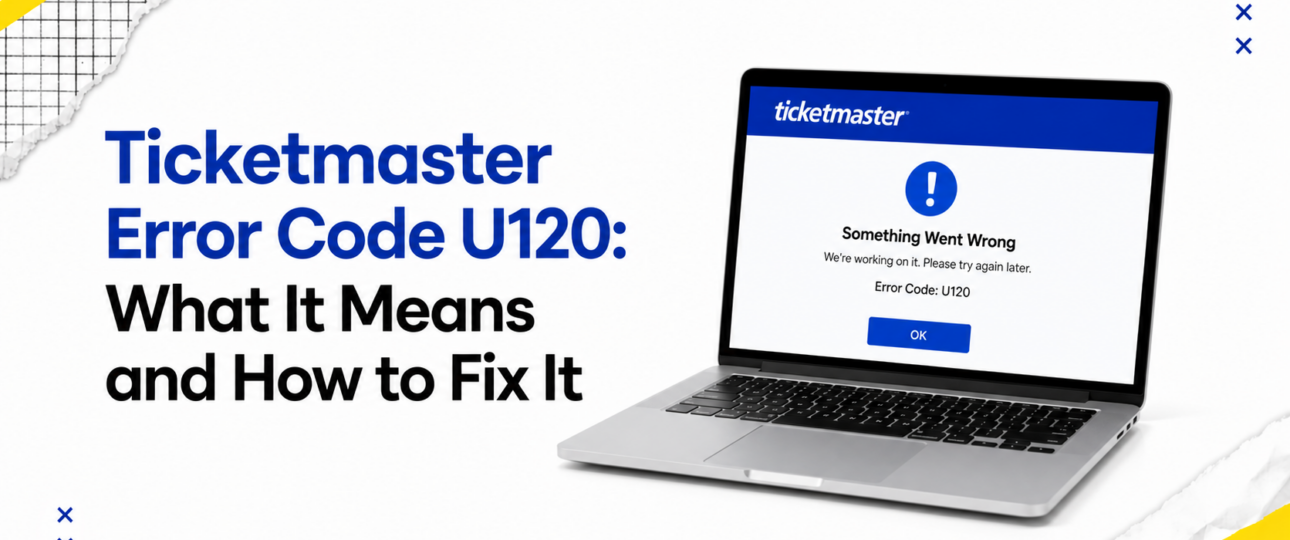
Picture this: tickets for your favourite artist or team have just gone on sale, you have filled your basket, and you are seconds away from checkout. Then, out of nowhere, a message appears on screen referencing Ticketmaster Error Code U120. The countdown timer keeps ticking, your excitement turns to frustration, and you are left wondering what just happened.
This experience is more common than many buyers realise, particularly during high-demand on-sales. The good news is that Ticketmaster Error Code U120 is usually a temporary hiccup rather than a sign of a serious account problem. In most cases, a short sequence of troubleshooting steps will have you back in the queue or completing your purchase within minutes.
This article walks through what the error typically indicates, the situations where it tends to appear, and a full set of practical fixes for desktop, mobile browser, and app users. It also covers preventative habits that reduce the odds of running into this error again, along with answers to the questions buyers ask most often.
Understanding Ticketmaster Error Code U120
Ticketmaster does not publish a detailed public breakdown of every internal error code it uses, and U120 falls into that category. There is no official technical description confirming exactly what triggers this particular code, so the guidance below is based on how the platform typically behaves, patterns reported by ticket buyers, and general best practice for resolving website and app errors of this kind.
Broadly speaking, error codes that appear during an active browsing or checkout session tend to relate to one of a handful of areas: communication between your device and Ticketmaster’s servers, session or login validity, security checks designed to filter out automated bots, or temporary strain on the system caused by a surge in traffic. Error Code U120 has been associated with moments where a page fails to load correctly, a session appears to time out unexpectedly, or a checkout step will not progress.
It is worth being clear from the outset that seeing this message does not automatically mean your account has been flagged, banned, or restricted. It is far more often a sign of a passing technical interruption than a permanent block, and the troubleshooting steps below resolve the vast majority of cases.
Possible Reasons Behind Error Code U120
Several everyday factors can contribute to this error appearing. Understanding the likely cause can help you choose the most relevant fix rather than working through every step at random.
- Temporary website disruptions: Ticketmaster’s servers occasionally experience brief slowdowns or maintenance windows, especially around major on-sales, which can cause errors to surface for a short period.
- Browser-related issues: An outdated browser, a build-up of cached data, or a conflicting extension can all interfere with how a page loads and processes your request.
- Expired user sessions: Ticketmaster sessions do not stay active indefinitely. A session that has timed out while you were browsing or filling in details can trigger an error when you try to proceed.
- Internet connectivity problems: A weak, unstable, or intermittent connection can interrupt the exchange of data between your device and Ticketmaster’s platform at a critical moment.
- Security checks: Automated fraud-prevention and bot-detection systems sometimes flag unusual browsing patterns, even for genuine buyers, particularly during high-traffic sales.
- VPN or proxy interference: Routing your connection through a VPN or proxy server can alter your apparent location or trigger additional verification, occasionally resulting in an error.
- High traffic during popular events: Extremely popular on-sales create a huge spike in simultaneous users, which increases the likelihood of temporary errors across the platform.
- Account verification issues: Incomplete profile details, an unverified email address, or outdated account information can sometimes interrupt checkout.
- Device or app-related glitches: An outdated app version, insufficient storage, or a background software conflict on your phone or tablet can also contribute to unexpected errors.
Step-by-Step Troubleshooting
Work through the following steps in order. Most buyers find the issue resolves within the first few attempts.
- Refresh the session: A page refresh often clears a temporary glitch and re-establishes a clean connection to Ticketmaster’s servers.
- Sign out and sign back in: Ending your session completely and logging in again generates a fresh authentication token, which resolves many session-related errors.
- Clear your browser cache and cookies: Old or corrupted cached data can cause pages to behave unpredictably. Clearing it forces your browser to load the most current version of the site.
- Try another browser: Switching from, say, Chrome to Firefox or Edge helps rule out a browser-specific conflict as the cause.
- Use a private or incognito browsing window: This opens the site without stored cookies, extensions, or cached files, giving you a clean slate for troubleshooting.
- Switch devices: Moving from a laptop to a phone, or the other way around, can bypass a device-specific issue and confirm the problem is isolated to one machine, rather than a wider account issue.
- Update the Ticketmaster app: App-related errors are frequently resolved by installing the latest version, which includes bug fixes from the developer.
- Restart your device: A full restart clears temporary memory issues and background processes that could be interfering with the app or browser.
- Turn off VPN services: Disabling a VPN or proxy before starting your purchase reduces the chance of triggering additional security checks.
- Check your network stability: A quick speed test or a switch from Wi-Fi to mobile data, or the reverse, can rule out connectivity as the root cause.
- Wait and try again during busy sales: During exceptionally high-demand on-sales, waiting a few minutes and re-attempting the purchase can succeed once traffic eases slightly.
- Confirm your account information: Double-check that your email, password, and billing details are accurate and up to date before retrying checkout.
- Contact Ticketmaster Support when the problem persists: When none of the above steps resolve the error, reaching out to official Ticketmaster support channels is the appropriate next step, particularly for repeated or unusual account-related errors.
Mobile App vs Website
The way Error Code U120 appears, and the most effective fix, can vary slightly depending on the platform you are using.
- Android: Users on Android devices should confirm the Ticketmaster app is updated through the Google Play Store, check that background data usage is enabled for the app, and consider clearing the app’s cache through device settings.
- iPhone: iOS users should check the App Store for pending Ticketmaster updates, confirm mobile data or Wi-Fi is stable, and try closing and reopening the app fully rather than leaving it running in the background.
- Desktop browsers: On a computer, clearing cache and cookies, disabling browser extensions such as ad blockers, and trying an alternative browser tend to be the most effective first steps.
- Mobile browsers: For those buying through a phone’s browser rather than the dedicated app, switching to private browsing mode or trying the official app instead often resolves loading issues more quickly than repeated refreshing.
Across every platform, a stable internet connection and an up-to-date app or browser version make the biggest difference to a smooth checkout experience. Ticketmaster Error Code U102
Best Practices to Avoid Ticketmaster Errors
A handful of good habits can meaningfully reduce the chances of encountering Error Code U120 or similar Ticketmaster website issues in future:
- Keep your browser and the Ticketmaster app updated to their latest versions.
- Log in to your account before ticket sales begin, rather than during the rush.
- Use a reliable, stable internet connection, ideally avoiding public Wi-Fi during major on-sales.
- Avoid multiple simultaneous login sessions across different devices or tabs.
- Complete your purchase promptly once tickets are in your basket, as extended delays can trigger session timeouts.
- Disable browser extensions, such as ad blockers or script blockers, that may interfere with checkout pages.
- Keep your saved payment methods current and avoid expired cards at the point of purchase.
Myths About Ticketmaster Error Code U120
A few misconceptions tend to circulate among frustrated ticket buyers. Here is a clearer picture of what is, and is not, accurate.
Myth: It always means your account is banned. This is rarely the case. Most instances relate to temporary technical or connectivity issues rather than account restrictions.
Myth: Clearing cache always fixes it. Clearing cache resolves many browser-based errors, though it will not help when the underlying cause is server load, network instability, or a security check.
Myth: Only mobile users experience it. Reports of this error come from desktop, mobile browser, and app users alike, so it is not limited to one platform.
Myth: Creating a new account is the only solution. This step is rarely necessary and is not recommended as a first response, since the issue is generally unrelated to the account itself.
Quick Troubleshooting Summary
| Situation | Recommended Action |
| Error appears mid-checkout | Refresh the page and sign back in |
| Using an old browser version | Update or switch browsers |
| Connected via VPN | Disable the VPN and retry |
| Error occurs during a major on-sale | Wait a few minutes before trying again |
| Using the mobile app | Update the app through your device’s app store |
| Session seems to have timed out | Sign out fully, then log back in |
| Weak or unstable Wi-Fi | Switch to mobile data, or the reverse |
| Error persists across devices | Contact Ticketmaster Support |
| Multiple browser tabs open | Close extra tabs and use a single session |
| Payment details outdated | Update card details before retrying |
The Bottom Line
Ticketmaster Error Code U120 can be an unwelcome interruption, especially in the middle of a fast-moving on-sale, though it is rarely a cause for serious concern. In the majority of cases, straightforward steps such as refreshing your session, clearing cache, switching browsers, or disabling a VPN will resolve the issue quickly. Being patient during periods of exceptionally high demand also goes a long way, since much of the strain behind these errors eases once initial traffic settles.
Building good habits, such as logging in early, keeping your app and browser updated, and completing purchases promptly, helps reduce the chances of encountering this or similar Ticketmaster errors in future. When the problem continues despite trying the recommended steps, contacting Ticketmaster Support directly remains the best way to get tailored help and secure your tickets.
Frequently Asked Questions
What does Ticketmaster Error Code U120 mean?
It generally points to a temporary interruption during browsing or checkout, often linked to session timing, connectivity, or a security check, rather than a specific, publicly documented fault.
Why am I seeing Error Code U120?
Common triggers include an expired session, a browser issue, high traffic during a popular on-sale, or a VPN altering your connection details.
Can I still buy tickets after seeing U120?
Yes, in most cases. Working through the troubleshooting steps above, such as refreshing your session or switching browsers, typically allows you to complete the purchase.
Does changing browsers help?
Often, yes. Switching browsers rules out extensions, outdated software, or corrupted cache as the cause of the error.
Is U120 caused by Ticketmaster servers?
It can be, particularly during high-demand on-sales when server load increases significantly, though connectivity and browser issues on the user’s side are just as common.
Can VPN usage trigger this error?
Yes. A VPN can alter your apparent location or prompt extra verification steps, which occasionally results in this kind of error.
Should I reinstall the Ticketmaster app?
This is a reasonable step when updating the app alone does not resolve the issue, since a full reinstall clears any corrupted app data.
When should I contact customer support?
Reach out to Ticketmaster Customer Service Phone Number, when the error continues after trying the main troubleshooting steps, or when it appears alongside other unusual account activity.
Does this error mean my payment was charged?
Not necessarily. An error during checkout usually stops the transaction before payment is completed, though checking your order history and bank statement afterwards is a sensible precaution.
Will the error come back after I fix it once?
It can, particularly during busy sales, though following the preventative tips above reduces the likelihood of a repeat occurrence.
Is this error specific to certain events or venues?
No. It has been reported across a wide range of events and is linked to technical and connectivity factors rather than a specific event or venue.
Does using the app instead of a browser avoid the error entirely?
Not entirely, though keeping the app updated and using a stable connection reduces the chances of running into it there too.