
Few experiences are more frustrating than securing tickets for a hot concert or event, only to have the checkout process end with a Ticketweb payment failed error message. This issue often strikes at the worst possible moment—during high-demand on-sales when every second counts and inventory is disappearing fast. When a payment fails, it can mean the difference between attending the event and missing out entirely.
Payment failures on Ticketweb are common enough to affect thousands of users daily, but they are rarely permanent. Most transaction failures stem from temporary technical glitches, security protocols, or correctable user errors. Understanding why these failures happen and knowing exactly how to respond can turn a moment of panic into a quick resolution.
Why Ticketweb Payment Failed
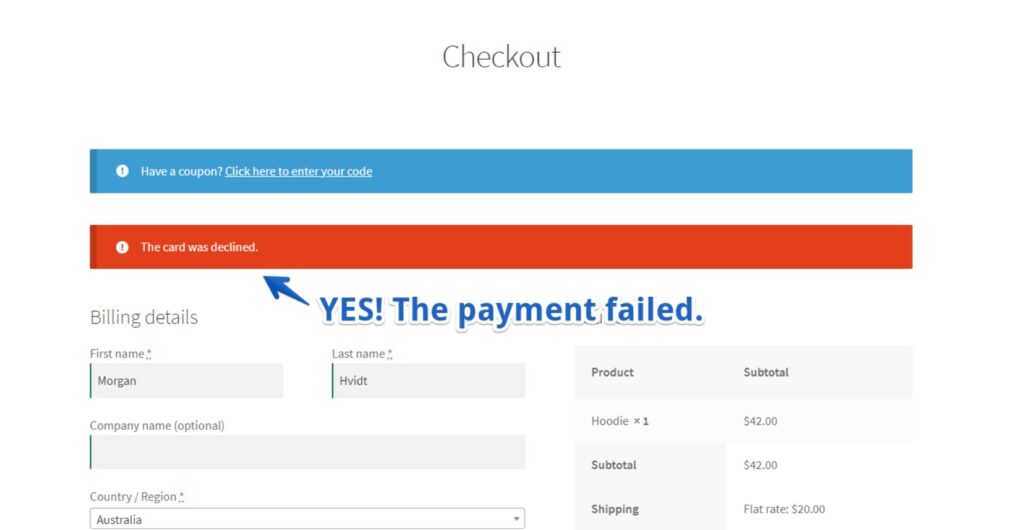
Payment processing on Ticketweb involves multiple stages, each presenting potential failure points. When a Ticketweb payment issue occurs, it is rarely a single problem but rather a breakdown somewhere in this chain.
The process begins when the customer submits payment details. The information travels through Ticketweb’s system to a payment gateway, which then communicates with the bank that issued the card. The bank performs fraud checks, verifies available funds, and either authorizes or declines the transaction. The response travels back through the gateway to Ticketweb, which then either confirms the order or displays a failure message.
Failures can happen at any stage:
- Bank-side declines: occur when the issuing bank flags the transaction as suspicious, especially for large purchases or when the billing address does not match what the bank has on file. Some banks also decline transactions from ticketing platforms due to their classification as high-risk for fraud.
- Payment gateway timeouts: happen during high-traffic periods when the system becomes overloaded. The authorization request may reach the bank, but the response fails to return to Ticketweb within the allotted time window.
- Technical conflicts: arise from the user’s own device or browser. Outdated cache files, corrupted cookies, or incompatible browser extensions can interrupt the payment flow before it even reaches Ticketweb’s servers.
- Account-related flags: can also trigger failures. Multiple failed payment attempts in quick succession often trigger automated security reviews, temporarily restricting the account from completing transactions.
Understanding these root causes helps in selecting the right fix. A bank-side decline requires a different approach than a browser-related checkout error. The following solutions address each potential failure point systematically.
9 Proven Ways to Fix Ticketweb Payment Failed Error
1. Verify Payment Method Compatibility
Before troubleshooting technical issues, confirm that the payment method meets Ticketweb’s requirements. Ticketweb accepts American Express, Visa, MasterCard, and Discover for events in the United States. For Canadian events, American Express, Visa, and MasterCard are accepted.
Not all cards work for all transactions. Some prepaid cards, virtual cards, or cards issued by smaller banks may not process correctly through Ticketweb’s payment gateway. If using a less common card, switching to a major credit card often resolves the failure immediately.
Additionally, verify that the card has not expired and that sufficient funds or credit are available. Banks sometimes decline transactions even when funds appear available if the card has reached a daily spending limit or if the issuer places temporary holds on certain merchant categories.
2. Clear Browser Cache and Cookies
Cached data helps websites load faster, but outdated cache files can conflict with Ticketweb’s updated payment scripts. When the browser loads old code, buttons may stop responding, forms may fail to submit, and payment processing can stall mid-transaction.
To clear cache and cookies in most browsers:
- Open browser settings
- Locate privacy or history sections
- Select “Clear browsing data”
- Choose cached images and files, plus cookies
- Set time range to “All time”
- Confirm and restart the browser
After clearing, attempt the purchase again. This simple fix resolves many Ticketweb checkout error situations because it forces the browser to load fresh code from Ticketweb’s servers.
3. Switch to a Different Browser or Device
If clearing cache does not work, the problem may be browser-specific. Some browsers handle payment gateway interactions differently, and certain extensions—particularly ad blockers or script blockers—can interfere with the checkout flow.
Switching to a different browser tests whether the issue is local to the original browser. Recommended alternatives include Google Chrome, Mozilla Firefox, or Safari. For the cleanest test, use a browser with no extensions enabled.
If the browser switch works, the original browser likely has an extension conflict or corrupted profile. Temporarily disabling extensions in the original browser may restore functionality without switching permanently.
For mobile users, switching from the Ticketweb app to the mobile website can also resolve payment issues. App-specific problems, such as outdated versions or cached data within the app, may block payments while the website processes transactions normally.
4. Check for Account or Order Restrictions
Ticketweb accounts can face temporary restrictions triggered by unusual activity. Rapid repeated login attempts, multiple failed payment submissions, or attempting to exceed ticket limits can all trigger automated security reviews.
During a restriction, the account may appear functional for browsing but fail at the payment stage. If this occurs, waiting 30 to 60 minutes before attempting another purchase often allows the temporary block to lift.
Additionally, verify that the order does not exceed posted ticket limits. Ticket limits are displayed during the purchase process and apply across orders associated with the same name, email address, billing address, or credit card number. Attempting to exceed these limits results in automatic order cancellation.
5. Verify Billing Information Accuracy
Billing address verification is a standard fraud prevention measure. When the billing address entered during checkout does not match the address the bank has on file, the transaction is automatically declined.
Double-check every detail:
- Street address exactly as it appears on the bank statement
- ZIP code or postal code
- Cardholder name exactly as printed on the card
Even minor discrepancies—such as using “Street” instead of “St” or omitting an apartment number—can trigger a mismatch and cause the payment to fail. Correcting these details to match the bank’s records exactly often resolves the issue immediately.
6. Contact the Bank to Authorize the Transaction
Banks increasingly flag ticketing purchases as potential fraud, especially when transactions involve large amounts or out-of-state events. When this happens, the bank declines the transaction without notifying the cardholder, and Ticketweb displays a generic payment failed message.
Before attempting another purchase, call the number on the back of the card. Ask the bank representative:
- Whether any recent attempts to charge the card were declined
- If the bank has placed a fraud block on ticketing merchants
- To whitelist Ticketweb as an approved merchant
- To confirm there are no holds or limits preventing the transaction
With the bank’s authorization confirmed, retry the purchase immediately. This proactive step prevents repeated declines that could otherwise trigger account restrictions.
7. Use Incognito or Private Browsing Mode
Private browsing modes provide a clean session environment free from cached data, cookies, and extension interference. When a Ticketweb payment issue persists despite clearing cache, incognito mode offers a quick way to test whether the problem stems from accumulated browser data.
To open an incognito window:
- Chrome: Ctrl+Shift+N (Windows) or Cmd+Shift+N (Mac)
- Firefox: Ctrl+Shift+P (Windows) or Cmd+Shift+P (Mac)
- Safari: Cmd+Shift+N
- Edge: Ctrl+Shift+N
In this fresh session, log into Ticketweb and attempt the purchase again. If successful, the issue was browser-related, and the main browser profile may need more thorough cleaning or resetting.
8. Disable VPN or Proxy Connections
Virtual private networks and proxy services route internet traffic through different servers, often in different countries or regions. While useful for privacy, these connections can interfere with payment processing on Ticketweb.
When traffic appears to originate from a location different from the billing address or from an IP address associated with high fraud risk, the payment gateway may automatically decline the transaction. Additionally, some VPN connections experience slower speeds or packet loss, causing payment gateway timeouts.
Temporarily disable any VPN or proxy service and connect directly through the regular internet connection. Attempt the purchase again with the real IP address visible. If this resolves the failure, consider whitelisting Ticketweb in the VPN settings or keeping the VPN off during future purchases.
9. Wait and Retry During Low-Traffic Periods
Sometimes, the problem is neither the user nor the bank but sheer volume. During major on-sales, Ticketweb experiences sudden traffic spikes that can overwhelm servers and payment gateways. When thousands of users attempt checkout simultaneously, payment processing slows, timeouts increase, and failures become more common.
If facing a Ticketweb transaction failed error during a high-demand sale, step back briefly. Rather than hammering the checkout button repeatedly—which can trigger security flags—wait 10 to 15 minutes and try again. Traffic often subsides in waves as early buyers complete their purchases and leave the system.
For less time-sensitive purchases, waiting until off-peak hours (early morning or late evening) often results in smoother processing with fewer errors.
Common Ticketweb Payment Errors
Understanding specific error messages helps narrow down the cause and select the right fix.
“Something went wrong” is a catch-all error that appears when the system encounters an unexpected condition. This often stems from session timeouts or temporary glitches. Refreshing the session by logging out and back in typically resolves it.
“Payment failed” indicates the transaction did not complete authorization. This can result from bank declines, incorrect billing information, or gateway timeouts. Review billing details and contact the bank before retrying.
“Order stuck on processing” means the payment system received the request but has not received confirmation from the bank. Funds may appear as pending, but the order is not confirmed. In most cases, the pending charge automatically reverses within 3–7 business days if the order does not complete.
“Charged but no confirmation” occurs when the bank authorizes the payment, but Ticketweb does not receive final confirmation before the session ends. Users should check their Ticketweb account order history and email (including spam folders) for confirmation. If no confirmation exists after several hours, contact Ticketweb support with order details.
Tips to Avoid Ticketweb Payment Problems
Prevention remains the best strategy for avoiding payment failures. Implementing these practices before starting a ticket purchase minimizes the risk of checkout errors.
- Prepare payment information in advance. Have card details, billing address, and contact information ready before the on-sale time. Typing quickly under pressure increases the chance of errors that trigger declines.
- Save payment methods to the account. Adding a card to the Ticketweb account before the sale allows for faster checkout and reduces the risk of data entry mistakes.
- Test the card earlier in the day. Making a small purchase elsewhere confirms the card is active, has available funds, and is not blocked by the bank.
- Update the Ticketweb app regularly. App updates often include fixes for payment processing bugs and compatibility improvements. Running the latest version reduces app-specific failures.
- Use a stable internet connection. Wired connections or strong Wi-Fi provide more reliable payment processing than cellular data in areas with weak signals.
- Log into the account before the on-sale starts.This verifies account access and avoids login delays during checkout.
Wrapping It Up!
A Ticketweb payment failed error can derail ticket-buying plans, but it rarely means the tickets are lost forever. Most payment failures stem from temporary issues with clear solutions. By working through the nine fixes outlined in this guide—from verifying card compatibility and clearing browser data to contacting the bank and retrying during low-traffic periods—users can resolve the vast majority of checkout errors quickly.
The key to success lies in systematic troubleshooting. Rather than repeatedly clicking the purchase button and hoping for a different result, approach the problem methodically. Start with the simplest fixes like checking billing information and switching browsers, then progress to bank contact and account verification if needed. This structured approach not only resolves the immediate issue but also prevents triggering security protocols that could further delay the purchase. ticketweb sell tickets
When all else fails, Ticketweb support stands ready to assist. Having order details, screenshots of errors, and a clear explanation of steps already taken speeds up the support process significantly. With patience and the right troubleshooting steps, those coveted tickets will be securely in the account and ready for event day.
Frequently Asked Questions
1. Why does Ticketweb keep saying my payment failed?
Payment failures typically result from bank-side declines, incorrect billing information, or temporary technical issues with the payment gateway. Banks often decline ticketing transactions as a fraud precaution, especially for large purchases or out-of-state events. Verifying billing details and contacting the bank before retrying usually resolves the issue.
2. Will I be charged if my Ticketweb payment fails?
When a payment fails during checkout, the authorization hold may temporarily appear on the card statement, but funds are not actually transferred. These pending holds typically disappear within 3–7 business days. If the order did not receive confirmation, no charge will ultimately post.
3. Can I use PayPal on Ticketweb?
Ticketweb accepts major credit cards including Visa, MasterCard, American Express, and Discover for US events. PayPal is not listed as a direct payment method in Ticketweb’s official purchase policy. Users should have a credit card ready as backup.
4. Why was my card declined even though I have sufficient funds?
Funds availability alone does not guarantee approval. Banks may decline transactions due to fraud concerns, daily spending limits, merchant category blocks, or billing address mismatches. Contacting the bank to authorize the specific transaction often resolves these declines.
5. How long do I have to complete payment on Ticketweb?
During checkout, a timer typically displays the time remaining to complete the purchase. This timer varies by event but generally provides several minutes to enter payment details. If the timer expires, tickets are released back to inventory.
6. What should I do if I was charged but received no confirmation?
First, check the Ticketweb account order history and email spam folders. If no confirmation exists, the order likely did not complete, and the pending charge will reverse automatically within 3–7 business days. To expedite resolution, contact Ticketweb support with the order details and time of the attempted purchase.